

How to Turn Your Webflow Site Into a Mobile App
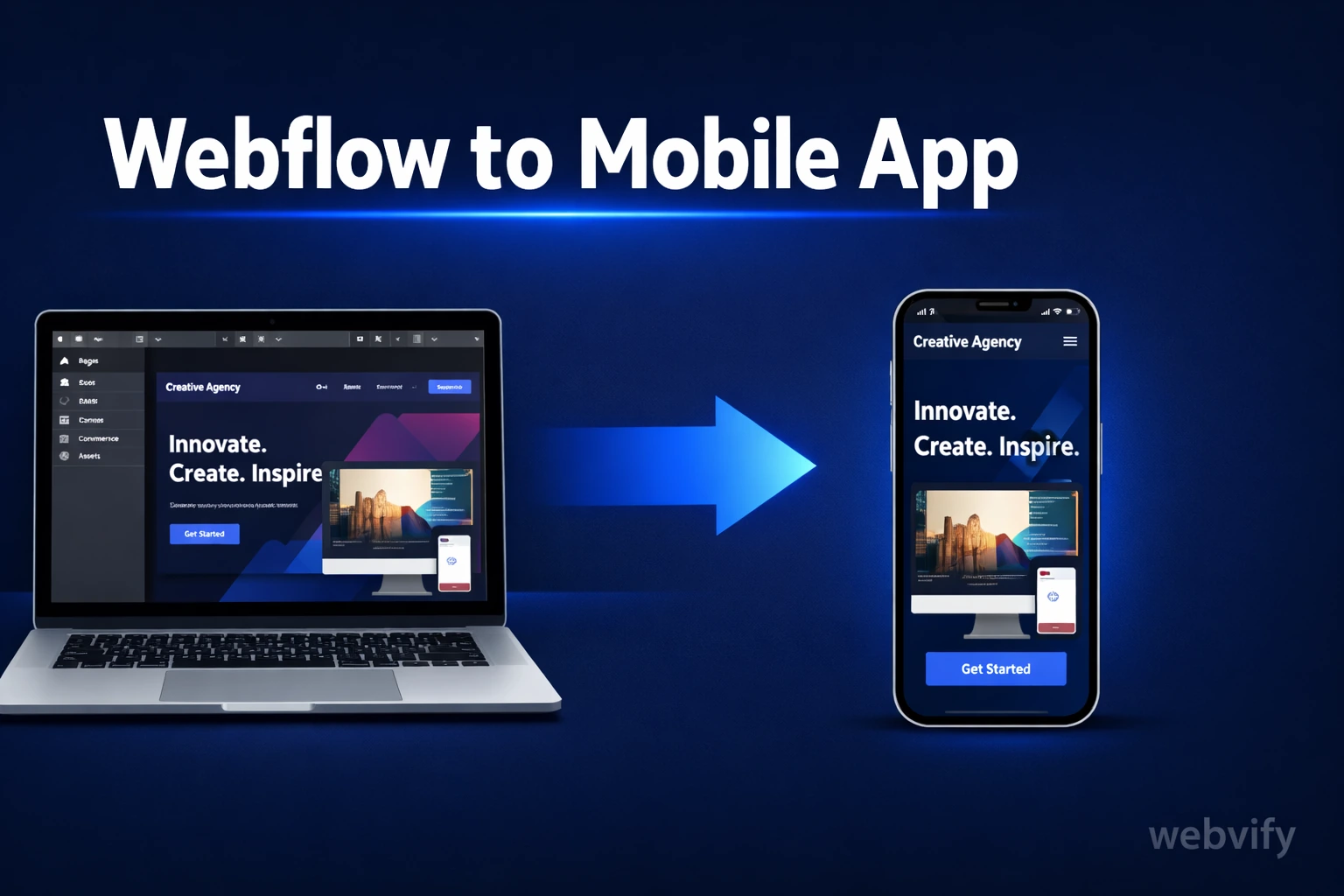
Webflow doesn't have a publish-to-App-Store button. Here's how to convert your Webflow site into a mobile app — no mobile developer needed.
Inside this article
- How to Turn Your Webflow Site Into a Mobile App
- Why Webflow Sites Can't Be Directly Published as Apps
- What a WebView App Means for a Webflow Site
- What to Check on Your Webflow Site Before You Convert
- The Submission Process: App Store and Google Play
- How Long Does It Take?
- What Your Webflow App Can and Can't Do
- FAQ
How to Turn Your Webflow Site Into a Mobile App
Webflow lets you build a production-ready website without writing a line of code. But the moment a client asks for a mobile app, Webflow steps aside. There's no native export to iOS or Android — and that gap costs web designers clients every week.
Here's how the conversion actually works, what Webflow-specific issues to watch for, and how to get your app live on the App Store and Google Play without hiring a mobile developer.
Why Webflow Sites Can't Be Directly Published as Apps
The App Store and Google Play don't accept websites — they require native binaries. A binary is a compiled package that runs directly on the device's operating system. Your Webflow site is a collection of HTML, CSS, and JavaScript hosted on a server. Those are two completely different formats.
This is the same challenge you'd face with any website, whether it's built on Wix, Squarespace, or custom code. (If you're on Wix, this guide walks through the same conversion process for Wix sites →.)
The solution is a WebView app — a native app shell that loads your Webflow site inside it. The user downloads a real app from the App Store, opens it, and sees your Webflow site rendered in a full-screen, app-like experience.
What a WebView App Means for a Webflow Site
A WebView app wraps your existing Webflow URL inside a native iOS and Android container. From the user's perspective, it looks and feels like a real app. From your perspective, you keep maintaining your Webflow site exactly as you do now — any update you publish in Webflow instantly shows up in the app.
Here's what this means practically:
- Your content is always in sync. No separate app codebase to maintain. Edit in Webflow, changes appear in the app.
- Push notifications become possible. Native app containers can send push notifications — something a Webflow site alone cannot do.
- Your app is listed on the App Store and Google Play. Users can find it by searching your brand name, which builds credibility fast.
- You keep your Webflow design exactly as-is. No redesign, no rebuilding — just packaging.
What to Check on Your Webflow Site Before You Convert
Not every Webflow site is immediately ready for app packaging. A few things to verify before you start:
Mobile responsiveness. Your site needs to look correct on a 390px-wide screen. If you've been designing primarily for desktop, do a mobile preview pass in Webflow before submitting. Poor mobile rendering is the most common issue in first-time Webflow-to-app projects.
External authentication. If your Webflow site uses Memberstack, Outseta, or any third-party login, test that the login flow works inside a WebView. Some OAuth providers block WebView logins by default — this needs to be configured before submission.
Webflow's CMS and Ecommerce. Both work fine inside a WebView. If you're running a Webflow Ecommerce store, the checkout flow will function as normal — but Apple requires in-app purchases (IAP) for digital goods sold within apps. If you're selling physical products, services, or subscriptions managed outside the App Store, you're fine.
Custom domain. Your app will load from your published Webflow domain. Make sure your site is published and accessible on a custom domain before you start the app packaging process.
If you're planning to add an App Store presence to a client's Webflow project, this guide on offering mobile apps as a web design upsell → is worth reading first.
The Submission Process: App Store and Google Play
This is where most Webflow site owners get stuck. The app build itself is straightforward — the App Store submission process is not.
Apple's review process requires:
- An Apple Developer account ($99/year)
- A valid app bundle ID and version number
- App icons in specific sizes (up to 1024×1024px)
- Screenshots at exact device dimensions for iPhone and iPad
- A privacy policy URL
- A description, keywords, and category
Google Play has a similar list, plus it requires an APK or AAB file, a signed keystore, and a Play Console account ($25 one-time).
Most Webflow site owners don't have any of this set up. The technical setup alone — generating signing certificates, configuring Xcode or Android Studio, building the binary — can take days if you've never done it before.
Services like Webvify handle this entire process for you. You provide the URL, they handle the build, the signing, the screenshots, and the submission — and your app goes live under your brand name. No Xcode, no developer environment.
How Long Does It Take?
The app build itself takes hours. The timeline is mostly determined by App Store review.
Apple's review typically takes 24–48 hours for straightforward submissions. If your app is flagged for review (common for first-time submissions), it can take up to a week. Google Play is usually faster — 24 hours is typical.
The overall timeline from "I want an app" to "the app is live" is usually 3–7 days, assuming your Webflow site is already mobile-optimized and there are no policy issues with the content.
To understand what the submission process involves in detail, this step-by-step guide to App Store submission → covers the requirements from start to finish.
What Your Webflow App Can and Can't Do
What it can do:
- Display all your Webflow pages, blog posts, and products
- Handle form submissions, contact forms, and newsletter signups
- Run Webflow Ecommerce checkouts (for physical goods)
- Support login flows with compatible auth providers
- Send push notifications to opted-in users
- Link to external URLs
What it can't do (without additional development):
- Access the device camera or GPS without native code modifications
- Store data locally when offline
- Use Apple Pay or Google Pay in the native in-app context (different from standard web checkout)
- Run heavy animations or transitions that depend on browser-specific rendering
For most business websites — portfolio sites, service pages, booking flows, e-commerce — the WebView approach covers everything you need.
FAQ
Can I convert any Webflow site to a mobile app?
Yes, as long as your site is published on a custom domain and is mobile-responsive. If your site uses third-party authentication or sells digital goods, you'll need to check compatibility before submitting. Most standard Webflow sites — including CMS-powered blogs and Ecommerce stores selling physical products — convert without issues.
Do I need a developer to submit a Webflow app to the App Store?
Not necessarily. The submission itself can be done without writing code, but it requires creating developer accounts, generating signing certificates, and building the app binary. If you're not comfortable with that, a done-for-you service handles the entire submission for you.
Will my Webflow site updates show up in the app automatically?
Yes. Because the app loads your live Webflow URL, any changes you publish in Webflow — new pages, updated content, price changes — appear in the app immediately. There's no separate app update to submit.
If you want to get your Webflow site onto the App Store and Google Play without dealing with the technical setup, Webvify handles the entire process — from building the app to submitting it — so you can focus on your site.