

How to Transfer Your Android App to a New Google Play Developer Account
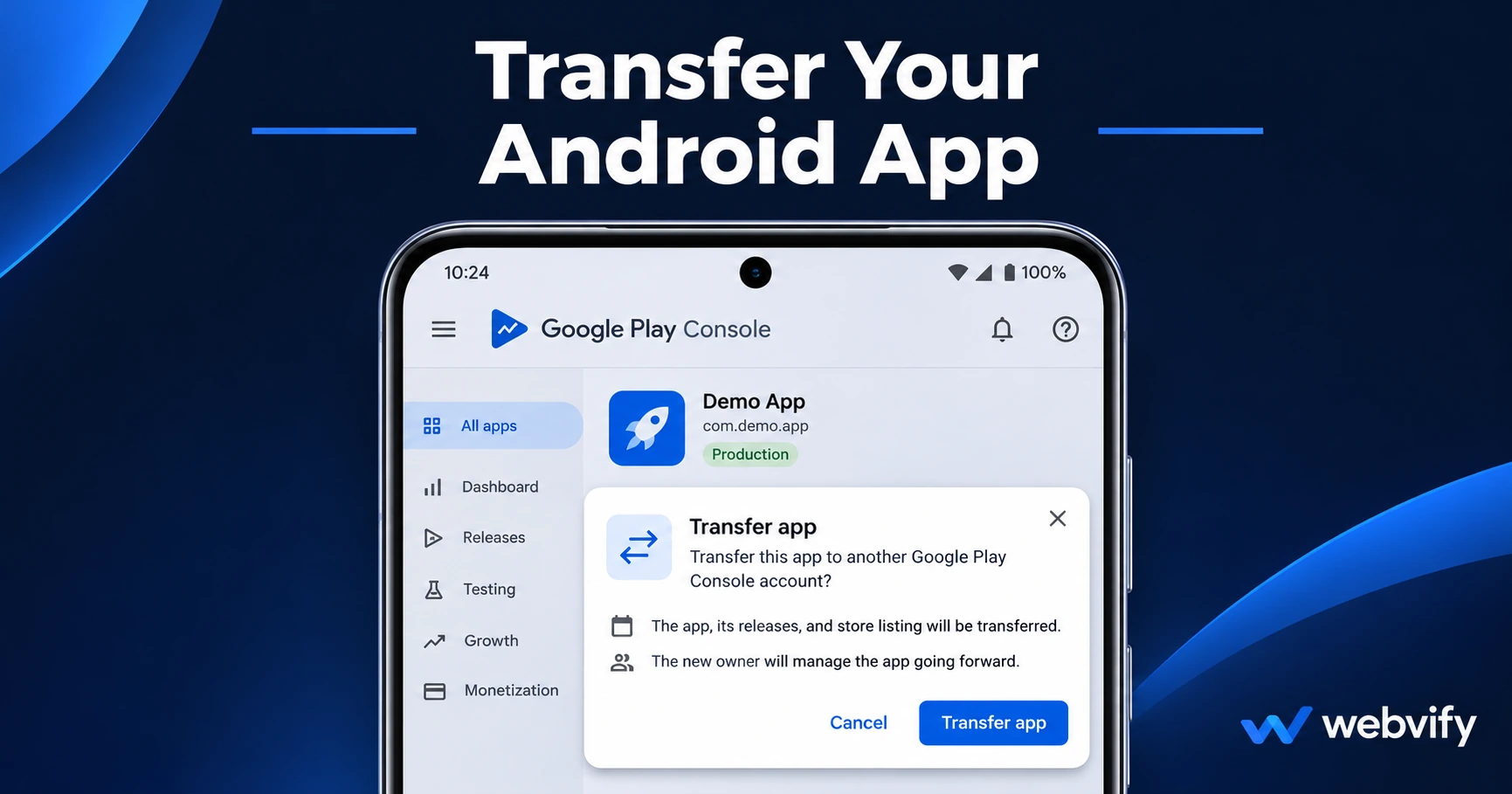
Need to transfer your Android app to a new Google Play developer account? Here's the exact process, what transfers automatically, and what you need to reconnect.
Inside this article
Your business restructured, a client wants the app under their account, or you're moving from a personal developer account to a company one — whatever the reason, Google Play does let you transfer individual apps. But the process is not obvious, and skipping a prerequisite step can leave you waiting days for support to fix it manually.
Here's exactly how to transfer an app to a new Google Play developer account, what carries over automatically, and what you will need to reconnect after the move.
Why Google Play App Transfer Works Differently Than Apple
Before you start, it helps to know the structural difference between Google and Apple here.
Apple does not let you transfer individual apps. To move an app between Apple accounts, you have to transfer the entire developer account — including every app in it. That is a much bigger operation covered in this guide to transferring your iOS app to a new Apple developer account.
Google Play is more flexible. You can transfer a single app from one developer account to another, leaving everything else in the source account untouched. The app stays live on the Play Store throughout the process, ratings and reviews are preserved, and the existing download history carries over.
The catch: both accounts have to meet specific requirements, and the transfer window takes time.
Prerequisites: What Both Accounts Need Before You Start
Google will reject the transfer request if either account does not meet these conditions.
Source account (the one sending the app):
- Must be a full Google Play developer account in good standing (no active policy violations or suspensions)
- The app must not be under review for a policy issue or currently under appeal
- The app must not be unpublished or pending deletion
Destination account (the one receiving the app):
- Must also be a fully registered Google Play developer account ($25 one-time registration fee paid)
- Cannot already have an app with the same package name
- Must have a valid payment profile if the app is paid or has in-app purchases
One thing that trips people up: the destination account must have completed the full identity verification process. If the account was recently created and verification is still pending, Google will block the transfer.
Step-by-Step: How to Transfer an App on Google Play
The entire process is handled inside Play Console — no support tickets required.
- Open Play Console in the source account and select the app you want to transfer.
- In the left menu, go to Setup → Advanced settings.
- Scroll to the App transfer section and click Transfer app.
- Enter the Developer account ID of the destination account. The account owner can find this in Play Console under Settings → Developer account → Account details.
- Review the transfer checklist that appears. Google will flag any blocking issues before you submit.
- Click Send transfer request.
- The destination account receives an email notification with a link to accept or decline.
- Once the destination account accepts, Google processes the transfer — typically within 1 to 7 business days.
During this window, the app remains live and fully functional on the Play Store. Users will not see any change.
Services like Webvify handle Google Play developer account setup and submission as part of their end-to-end service — if you built your Android app as a WebView wrapper, the transfer process is identical, since what moves is the app binary and listing, not the underlying web technology.
What Transfers Automatically
When the transfer completes, the following move to the new account without any extra steps:
- App listing — title, description, screenshots, feature graphic, store metadata
- Ratings and reviews — the full review history carries over intact
- Download and install history — cumulative install counts are preserved
- In-app products — managed products and subscription configurations
- APK and AAB files — all uploaded binaries remain available
One important note on the developer name: if the source and destination accounts have different names, the app's store listing will show the new account's developer name. Users searching for apps by publisher name may notice this change. Update the store listing after transfer if brand consistency matters.
What You Need to Reconnect After the Transfer
Not everything moves automatically. Plan for these reconnection tasks on day one after the transfer completes.
Firebase and Google Analytics: The Firebase project is linked to the Google account that created it, not to Play Console. After transfer, open your Firebase project, go to Project Settings → Integrations, and re-link it to the new Play Console app entry. If you used Google Analytics via Firebase, the data history stays in the original project — you will not lose historical data, but new events will log under the new integration.
Play App Signing: If the app was enrolled in Play App Signing, Google manages the signing key on its servers. The key itself does not change during the transfer — the new account inherits signing key management. If you were managing your own signing key outside of Play App Signing, the new account owner needs the original keystore file and credentials to publish future updates.
Subscriptions and payment accounts: Existing subscriber billing continues through the original purchase records. No subscriber needs to re-subscribe. However, payout for new purchases after the transfer will route to the payment account attached to the destination developer account.
Play Console notifications and alerts: Policy alerts, review comments, and crash reports will now go to the destination account's registered email. Update any monitoring integrations that were pointing to the source account.
Common Reasons Transfers Get Rejected
If Google declines the transfer request, the error message in Play Console will specify the reason. The most common:
- Policy violation on the source account — resolve any flagged issues before attempting transfer
- Package name conflict — the destination account already has an app using the same package name (even if it was deleted, the name may be reserved for a grace period)
- Destination account not fully verified — complete identity verification in Play Console settings first
- App was recently published — Google has a brief hold period for newly launched apps before they can be transferred
Frequently Asked Questions
Does my app stay live on the Play Store during the transfer?
Yes. The app remains fully available to users throughout the transfer window. There is no downtime and no interruption to downloads or in-app purchases. Users will not see any change until the transfer completes and you optionally update the developer name in the store listing.
How long does a Google Play developer account transfer take?
Google typically processes app transfers within 1 to 7 business days after both accounts have confirmed the request. Complex transfers or transfers involving apps with active policy reviews may take longer. You can check the transfer status in Play Console under Setup → Advanced settings at any time.
Can I transfer a paid app or an app with subscriptions to a new Google Play account?
Yes. Paid apps, apps with in-app purchases, and subscription apps can all be transferred. Existing subscribers keep their subscriptions and billing cycles without interruption. Future purchases after the transfer will be processed through the payment account connected to the destination developer account.
Transferring an Android app to a new Google Play developer account is straightforward once both accounts are properly set up. The process takes a few days but requires no support ticket and no app downtime — just a confirmed transfer request between two valid accounts.
If you need to set up a new Google Play developer account from scratch before initiating a transfer, the Google Play Console beginner guide covers every section of the account setup process.
Ready to get your Android app published and managed end-to-end? Webvify handles developer account setup, app submission, and ongoing management so you don't have to.