

How to Transfer Your iOS App to a New Apple Developer Account
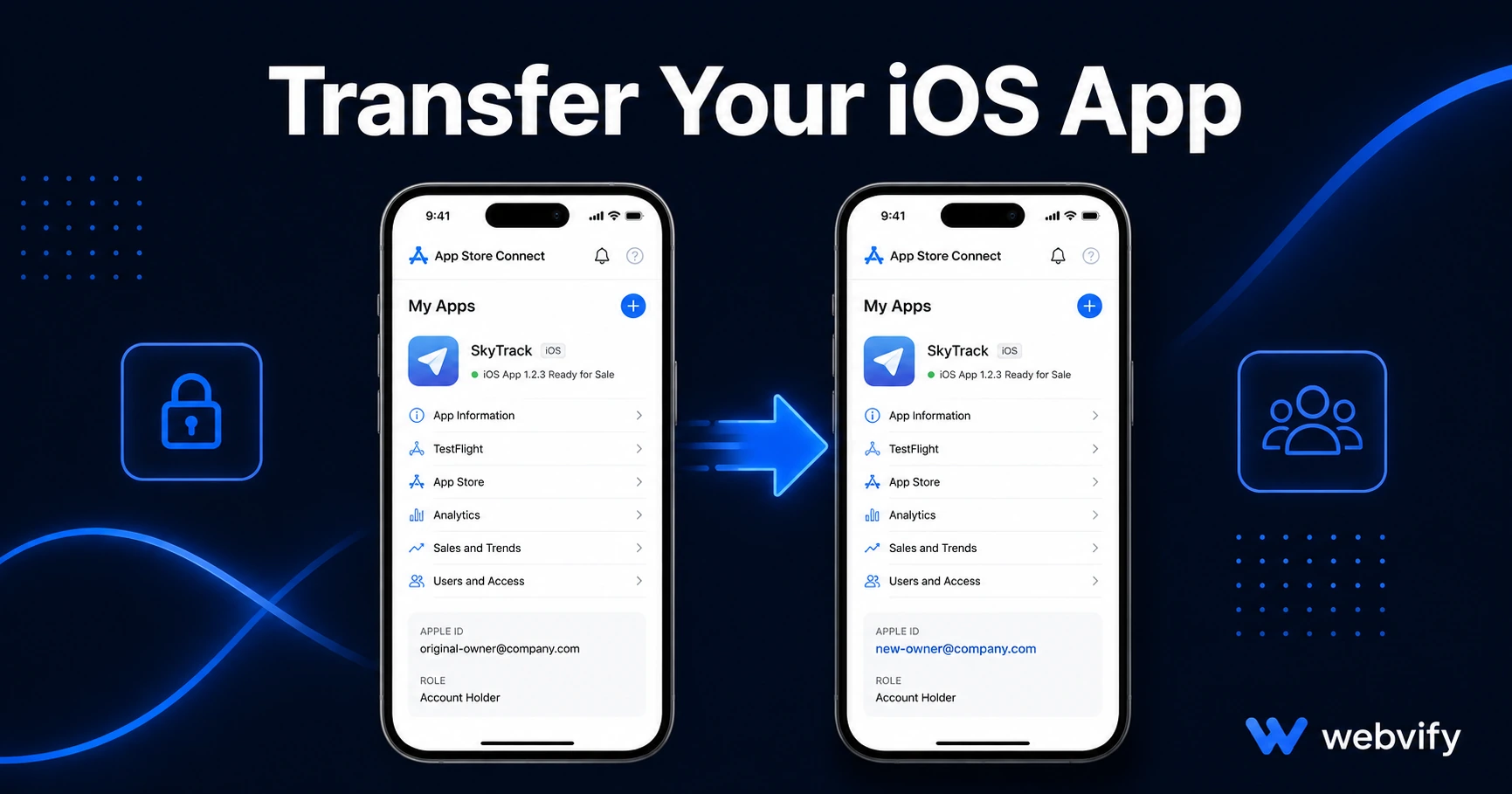
Step-by-step guide to transferring an iOS app to a new Apple Developer account — what carries over, what doesn't, and how to avoid losing your App Store rating.
Inside this article
Apple's transfer tool moves your app binary — but not your App Store reviews, ratings, or promotional metadata. Most business owners only discover this after the transfer is already done.
What Transferring an iOS App Actually Means
When you transfer an iOS app to a new Apple Developer account, you're moving the App Store listing from one developer account to another. The receiving account gets the app's Bundle ID, version history, and binary — but some data doesn't survive the move.
This process runs through App Store Connect and is more restricted than most people expect. Both accounts must meet specific requirements before Apple permits the transfer. And the moment it completes, some of your listing's history is gone.
When You Actually Need a Transfer (vs. When You Don't)
Not every account change requires a formal transfer. Sometimes a simpler fix works.
Use the transfer process when:
- You're selling your business or app to a new owner
- You're restructuring your company and the Apple Developer account needs to move to a new legal entity
- A client wants their app under their own account rather than your agency's
- You need to close one developer account and move apps to another
You don't need a transfer if:
- You want to add a team member or admin — use App Store Connect's "Users and Access" panel instead
- You're updating your developer account's company name — edit your profile at developer.apple.com
- You want to publish the same app concept under a different Bundle ID — that's a new submission, not a transfer
Knowing which situation applies saves significant time.
Prerequisites Before You Start
Apple won't allow a transfer until both accounts meet these requirements.
The sending account must:
- Be in good standing (no contract violations, no unpaid invoices)
- Have no unresolved agreement signatures pending
- Have the app in "Ready for Sale," "Developer Removed from Sale," or "Invalid Binary" status — apps currently "In Review" cannot be transferred
- Have no active subscriptions unless the receiving account is also in the Apple Developer Program (not Enterprise)
The receiving account must:
- Hold an active Apple Developer Program membership ($99/year)
- Have accepted all current agreements in App Store Connect
- Not already have an app with the same Bundle ID
One requirement that surprises most people: if your app includes in-app purchases, both accounts need banking and tax information fully configured before the transfer can process. Apple won't complete it otherwise.
If you're setting up a brand-new developer account to receive the app, our guide on how to submit an app to the App Store without a developer covers account setup, agreements, and banking in the right order.
Services like Webvify handle App Store account setup end-to-end as part of the build and submission process, so the receiving account is always properly configured before any work begins.
Step-by-Step: How to Transfer in App Store Connect
Once both accounts are ready, the process takes minutes.
Step 1 — Log into the sending account Open App Store Connect and go to My Apps. Select the app you want to transfer.
Step 2 — Initiate the transfer Scroll to "Additional Information" at the bottom of the app page and click "Transfer App." Apple runs a compatibility check — if the app isn't eligible, the reason appears here.
Step 3 — Enter the receiving account's Team ID The receiving account holder finds their Team ID at developer.apple.com → Account → Membership.
Step 4 — Accept on the receiving account Apple sends a transfer notification to the receiving account. They log into App Store Connect, review the request, and accept.
Step 5 — Wait for processing Apple processes most transfers within minutes to a few hours. The app disappears from the sending account and appears in the receiving account's My Apps.
Step 6 — Restore metadata, pricing, and territories After the transfer completes, re-enter your pricing, verify territory sales availability, and check all promotional text. Screenshots and preview videos carry over — but review them, especially localized versions.
What Survives the Transfer (and What Doesn't)
This is the detail most guides skip.
What carries over:
- App binary and full version history
- Bundle ID
- TestFlight builds (active external tester groups don't transfer, but the builds do)
- In-app purchases (require reconnection in the new account)
- Partial Analytics data
What does NOT carry over:
- App Store ratings and reviews — these reset to zero in the new account
- Active promotional codes
- TestFlight external tester groups (testers need to be re-invited)
- Some promotional assets tied to the old account
The rating reset is the biggest practical consequence. If your app has 4.6 stars built over 18 months, those ratings are tied to the sending account. Your listing starts at zero stars on the new account from day one.
The best mitigation: run a push notification campaign asking existing users to leave a review before or immediately after the transfer. For apps that went through TestFlight before their original App Store launch, the TestFlight guide for small business also covers what to verify before making a listing live under a new account.
Frequently Asked Questions
Can I transfer an iOS app between an individual and an organization Apple Developer account?
Yes. Apple allows transfers in both directions — individual to organization and organization to individual. If the app includes in-app purchases, the receiving account must have banking and tax details fully set up before Apple will process the transfer.
How long does an Apple Developer account app transfer take?
Most transfers process within minutes to a few hours once both accounts have accepted. The slowest part is usually prerequisites — confirming both accounts are in good standing, agreements are signed, and banking is configured. Allow 1–3 business days if any account setup is incomplete.
Will my App Store reviews transfer to the new account?
No. App Store reviews and ratings are tied to the sending account and reset to zero after the transfer completes. The app's binary and version history move — the rating count does not. Plan a review recovery campaign (push notifications, in-app prompts) before or immediately after the transfer.
Getting ownership right from the start prevents the need to transfer later. Webvify publishes your app under your own Apple Developer account from day one — so the listing is yours, the reviews accumulate in your name, and there's nothing to move when you're ready to scale.