

TestFlight for Small Business: Get Your App Approved on the First Try
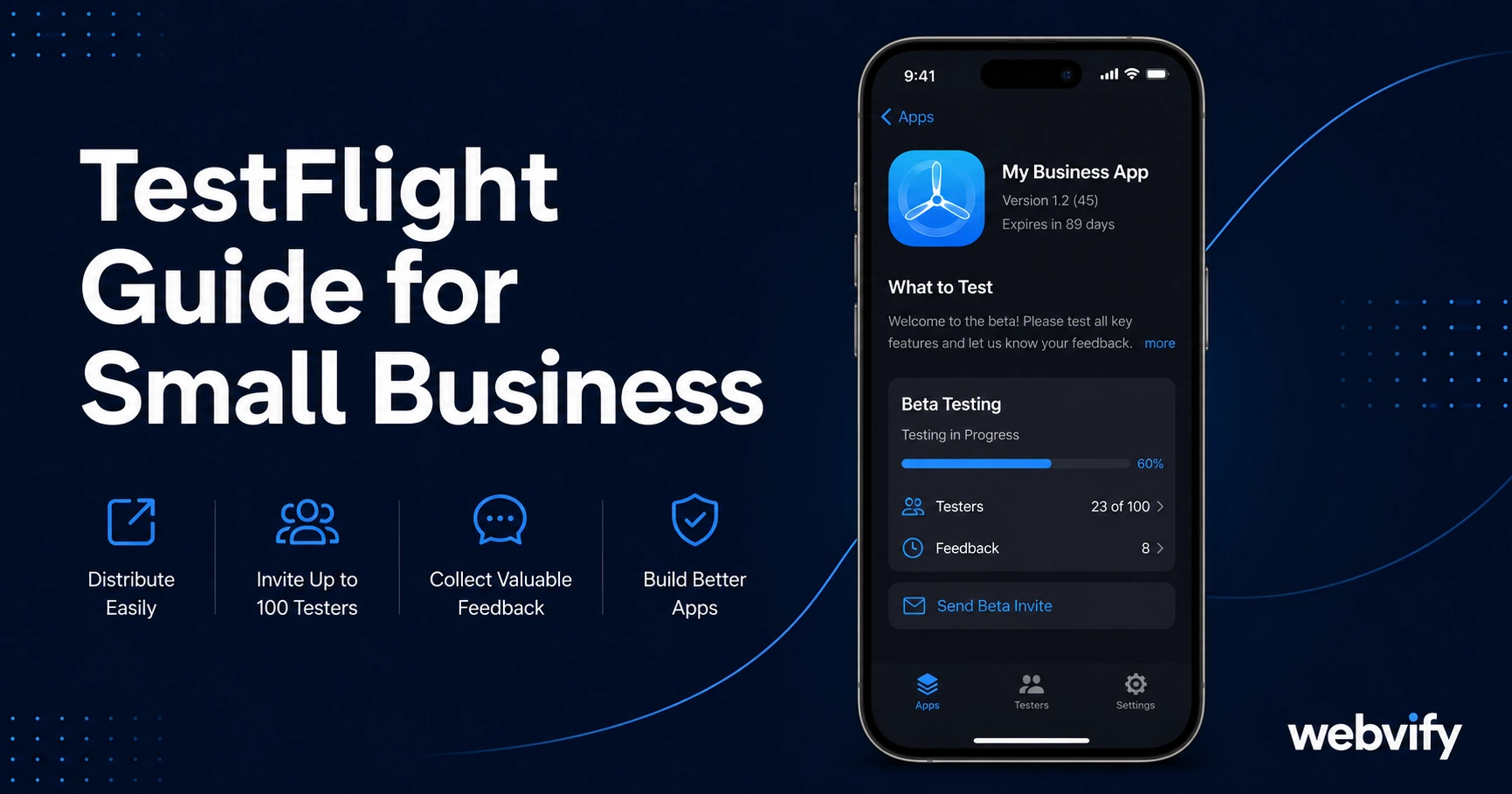
TestFlight lets you beta test your iOS app with real users before App Store submission — free. This guide shows small businesses how to set it up and catch rejections before they cost you.
Inside this article
- What Is TestFlight and Why Does It Matter for Small Business
- How to Set Up TestFlight for Small Business Beta Testing
- Who Should Beta Test Your App
- What to Test During the Beta Period
- TestFlight Limits Every Small Business Owner Should Know
- From TestFlight to App Store: The Final Submission Step
- Frequently Asked Questions
Apple rejected your first submission. It happens to most first-time submitters — and the most common reason isn't the code. It's problems that five minutes of real-world testing would have caught. TestFlight exists precisely for that window between "app is built" and "app is submitted."
This guide explains what TestFlight is, how to set it up in under 30 minutes, who to invite as beta testers, and what to look for before you submit to the App Store.
What Is TestFlight and Why Does It Matter for Small Business
TestFlight is Apple's official beta testing platform. It lets you share a pre-release version of your app with testers via email invite — before the app goes through the App Store review process. Testers install the app directly from Apple's TestFlight app on their iPhone or iPad, not from the App Store.
For small businesses, TestFlight solves a specific problem: the App Store review team evaluates your app on real hardware and looks for real usability issues. If your login screen freezes on an iPhone 12, or your menu doesn't scroll on an older iOS version, that's a rejection. Beta testing catches these issues on your testers' devices before Apple's reviewers see them.
TestFlight is free and built into Apple's App Store Connect dashboard — the same place you manage your App Store listing.
How to Set Up TestFlight for Small Business Beta Testing
You need an active Apple Developer account ($99/year) and a build uploaded to App Store Connect. Once those are in place:
- Log in to App Store Connect and navigate to your app.
- Go to the TestFlight tab.
- Click Add External Testers and enter email addresses.
- Apple will send each tester an invitation to install the TestFlight app and your build.
Testers get a notification, tap install, and within two minutes they're running your app. There's no side-loading, no developer mode toggle, no complicated setup on their end.
The build you upload for TestFlight is the same binary you'll later submit for App Store review. Running it through real testers first means you're not discovering crashes during Apple's review.
Services like Webvify handle the entire App Store Connect setup as part of their submission process — if you're converting a website into an app, they upload the build and walk you through the TestFlight configuration.
Who Should Beta Test Your App
The goal is to simulate how your real customers will use the app. Ideal testers:
- Actual customers or clients — they'll try things you'd never think to test, because they don't know how the app is "supposed" to work.
- People on different iPhone models — an older iPhone SE and a current iPhone 16 Pro can behave differently. Cover at least two device sizes.
- People on the oldest iOS you plan to support — if your app supports iOS 16+, test on an iOS 16 device, not just the latest.
- Family or staff members who aren't technical — they'll find usability issues that a developer would skip over.
You don't need dozens of testers. Five to ten real users giving honest feedback is more useful than fifty who tap through without actually using the features.
TestFlight supports up to 10,000 external testers, but for a small business app, start small and focus on quality feedback rather than numbers.
What to Test During the Beta Period
Give your testers specific scenarios to run through, not just "try it and see." Here's what matters most before App Store submission:
Core user flows — Can a user complete the main action your app is built around? For a restaurant app, that might be browsing the menu and finding the address. For a service business, it might be booking an appointment. Walk through this flow yourself first, then ask testers to do it without any guidance.
Login and account features — If your app has a login screen, test it on fresh installs. Sessions that work fine during development can fail in a clean install because cookies aren't carried over.
Loading and performance — Test on slower internet connections. An app that loads instantly on your office Wi-Fi might time out on a mobile network, triggering a blank screen that looks like a crash to the reviewer.
Content that doesn't scroll or fit — Long text blocks, wide images, and menus that look fine on desktop often break on smaller screens. TestFlight testers on older, smaller-screen iPhones will catch these instantly.
For a checklist of common WebView app issues that cause App Store rejections, the App Store rejection prevention guide covers the technical specifics in detail.
TestFlight Limits Every Small Business Owner Should Know
TestFlight has a few constraints worth knowing:
90-day expiry. A TestFlight build expires 90 days after upload. Testers can no longer install or update it after that point. For the purposes of beta testing before App Store submission, this is not a limitation — you're running a short test cycle, not a permanent distribution channel.
External testers require an App Review. When you first add external testers (people outside your Apple Developer team), Apple does a brief review of your build before it reaches them. This usually takes 24–48 hours. It's not the full App Store review — it's a basic check that the app opens and doesn't crash immediately. Plan for this waiting period.
No App Store presence. TestFlight is testing only. It doesn't appear in App Store search. Customers cannot find or download your app from the App Store until you go through the full submission and review process.
If you're also submitting to Google Play, the equivalent process is closed testing — the Google Play 12 testers guide covers that process in detail.
From TestFlight to App Store: The Final Submission Step
Once your beta testers have completed the test cycle and you've fixed any issues they found, you submit the same build for full App Store review through App Store Connect.
The review process typically takes 24–48 hours. If Apple has questions or finds an issue, they'll send a specific rejection note explaining what needs to change. Having already run TestFlight means most of the common rejection triggers — crashes, broken flows, content that doesn't load — are already resolved before the reviewer sees your app.
For the complete step-by-step walkthrough of the App Store submission process itself, the how to submit your app to the App Store guide covers every field in App Store Connect.
Frequently Asked Questions
Do I need TestFlight to submit to the App Store?
TestFlight is not required by Apple, but beta testing is strongly recommended. Apple's review team tests your app on real hardware, and issues found during review lead to rejections that can delay your launch by days or weeks. Running TestFlight with even five real testers before submission catches the most common rejection triggers.
How long does the TestFlight beta process take?
Plan for one week minimum: 24–48 hours for the initial external tester review by Apple, then three to five days for your testers to actually use the app and report back. If you collect feedback and fix issues, add another 24–48 hours to upload the revised build.
Can customers download my app from TestFlight permanently?
No. TestFlight builds expire after 90 days and cannot be discovered through the App Store. TestFlight is a pre-launch testing tool only. To make your app publicly available, you need to complete the full App Store review and publish the app on the App Store.
Ready to skip the back-and-forth with Apple's review team? Webvify handles the full App Store submission process — from building your app to setting up TestFlight and managing the review — so you don't have to navigate App Store Connect alone.