

How to Turn Your SharePoint Intranet Into an Employee Mobile App (Without a Developer)
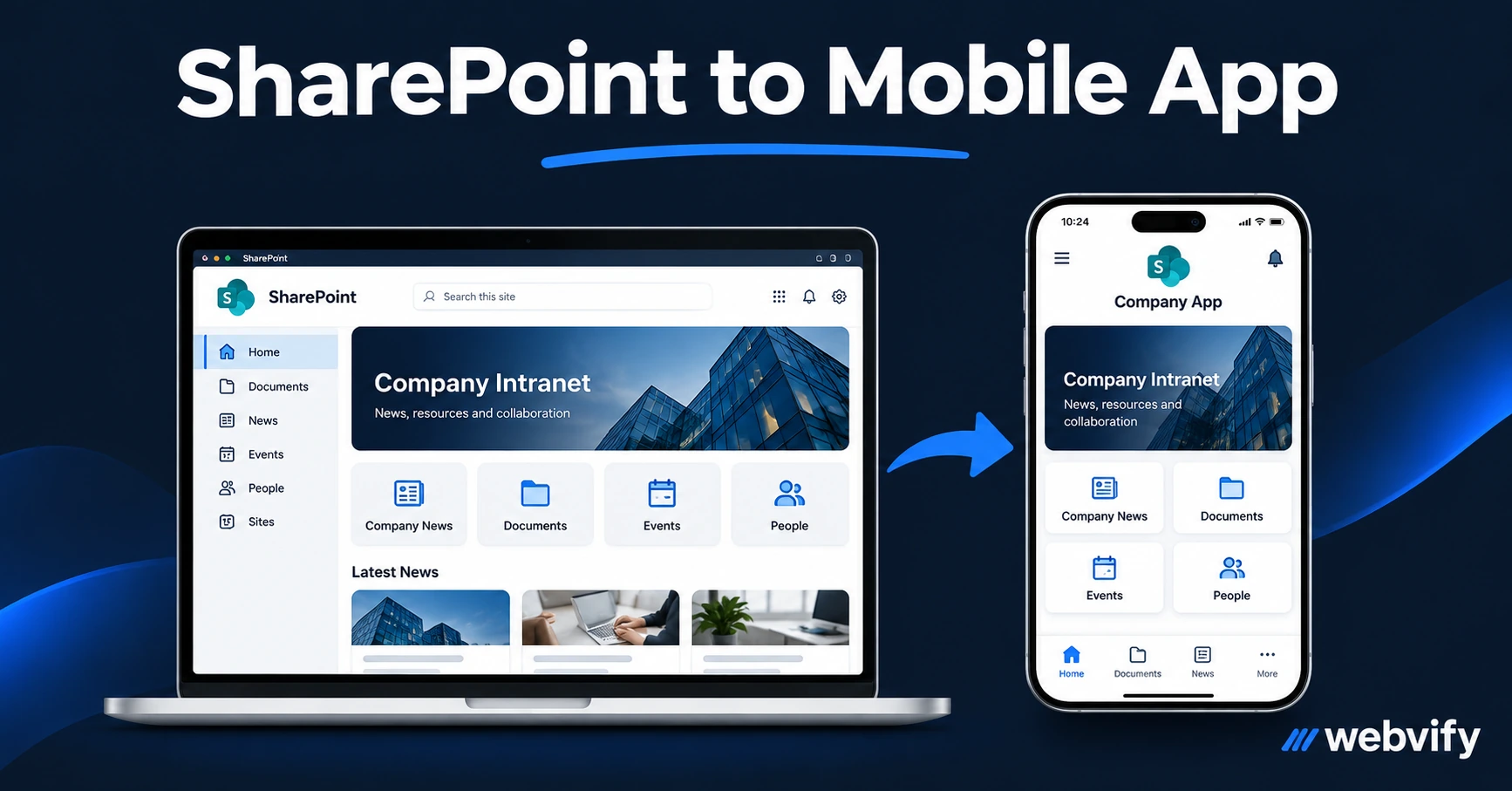
Turn your SharePoint or Microsoft 365 intranet into a branded employee mobile app. No rebuild, no developer — here's how it works and what to watch out for.
Inside this article
- Why SharePoint Doesn't Come With a Branded Mobile App
- How Converting SharePoint to a Mobile App Actually Works
- What Works — and What Needs Adjusting
- App Store vs Internal Distribution: Which Route Is Right for You?
- How to Submit Your SharePoint Mobile App to the App Store and Google Play
- Frequently Asked Questions
Most IT teams assume building a branded employee app means a six-figure custom development project. If your intranet already runs on SharePoint Online, the gap between "SharePoint site" and "employee mobile app" is smaller than you think.
Why SharePoint Doesn't Come With a Branded Mobile App
Microsoft ships a generic SharePoint mobile app — it's functional, but it shows Microsoft's branding, not yours. Employees searching the App Store for your company name won't find it. There's no push notification channel for internal announcements. And it sits inside a Microsoft utility, not on your company's own App Store listing.
For companies that have invested in a SharePoint intranet — announcements, HR forms, document libraries, news — the missing piece isn't the content. It's the delivery channel: a branded app on employee home screens that sends push notifications and shows your company logo in the App Store.
That's the gap a SharePoint mobile app solves.
How Converting SharePoint to a Mobile App Actually Works
SharePoint Online is a web platform. Every page, document library, news feed, and form loads in a browser. That means the same content can run inside a native iOS and Android app without rebuilding anything.
The technical approach is called a WebView wrapper: a native iOS or Android binary that opens your SharePoint URL inside a full-screen, app-like container. From the employee's perspective, it looks and behaves like a native app — with your icon on their home screen, push notifications from your IT team, and no Microsoft branding in sight.
What you get on top of the WebView foundation:
- Push notifications for internal announcements, policy updates, and urgent alerts
- Home screen presence under your company name
- App Store / Google Play listing employees can find by searching your company
- Session persistence so employees stay logged in after the first authentication
No data migration. No content rebuild. Your SharePoint site continues to be the source of truth — the app just surfaces it natively.
If you're evaluating the broader build-vs-convert decision, this enterprise mobile app development guide covers the trade-offs in detail.
What Works — and What Needs Adjusting
Most SharePoint functionality carries over cleanly into a WebView app:
| Feature | Works in WebView? |
|---|---|
| News and announcements | ✓ Yes |
| Document libraries (view, download) | ✓ Yes |
| Lists and custom lists | ✓ Yes |
| Modern forms (Power Apps, Microsoft Forms) | ✓ Yes |
| Microsoft 365 single sign-on (SSO) | ✓ Yes (with cookie persistence) |
| Teams-embedded webparts | ✗ Requires Teams client |
| Inline PDF preview | Depends on the viewer configured |
Authentication: Microsoft 365 OAuth login works in a WebView. The first-time login prompts employees to sign in with their company credentials. After that, the session cookie keeps them logged in until it expires — same behaviour as the browser. For companies using Azure AD Conditional Access, check that your policy allows mobile browser-equivalent access.
Teams content: Functionality that depends on the Teams desktop or mobile client (video calls, Teams chat) won't run inside a WebView. If your SharePoint site is mostly news, documents, and forms — the typical intranet use case — you won't hit this limit.
On-premises SharePoint: A WebView app points to a URL. If your SharePoint is on-prem with no public URL, employees would need to be on a VPN before the app loads — the same requirement that applies to opening the intranet in a browser. SharePoint Online is the cleaner path for mobile.
For a detailed look at WebView security considerations — particularly relevant for internal tools handling sensitive HR or finance content — see this WebView app security guide.
App Store vs Internal Distribution: Which Route Is Right for You?
You have two distribution paths for a SharePoint employee app:
Public App Store / Google Play — Employees find the app by searching your company name or scanning a QR code from IT. Anyone can download it, but Microsoft 365 login restricts access to employees. This is the fastest path to get the app on employee devices without requiring MDM enrollment.
Private distribution (Apple Business Manager / Google Play Work Profile) — The app is deployed silently to enrolled corporate devices through your MDM (Jamf, Intune, Kandji). No App Store listing. Best for companies with existing device management infrastructure.
For most small and mid-market teams without full MDM deployment, the public App Store route is simpler. The Microsoft 365 login acts as the access gate — only employees with valid credentials can use the app.
A service like Webvify handles both paths: App Store and Google Play submission under your company's developer accounts, plus the WebView build configured for your SharePoint URL and authentication setup. You don't touch Xcode or Android Studio.
How to Submit Your SharePoint Mobile App to the App Store and Google Play
If you're going the public App Store route, here's what the process looks like:
- Apple Developer account ($99/year) and a Google Play Console account ($25 one-time)
- A WebView wrapper pointing to your SharePoint Online URL, configured with your company name, icon, and color scheme
- Microsoft 365 SSO tested to confirm it works within the WebView (it does in most standard configurations)
- A privacy policy URL (required by both stores — your existing company privacy policy works)
- App Store screenshots and a description
Apple's review process takes 24–48 hours. Google Play first-time submissions take 3–7 days. After that, updates review in under 24 hours.
Frequently Asked Questions
Can a SharePoint mobile app use Microsoft 365 single sign-on?
Yes. Microsoft 365 OAuth login works inside a WebView. Employees authenticate once with their company credentials, and the session persists until it expires. Azure AD Conditional Access policies that allow browser-equivalent access will work without additional configuration.
Does a SharePoint employee app need to be listed on the public App Store?
No. You can distribute privately through Apple Business Manager or Google Play's work profile track without a public listing. However, for companies without MDM infrastructure, the public App Store is the simpler path — Microsoft 365 login restricts access to employees even when the app is publicly discoverable.
How long does it take to get a SharePoint mobile app live?
With a WebView wrapper approach, the build itself takes days rather than months. Add 24–48 hours for Apple review and 3–7 days for Google Play's first submission. Total time from start to live employee app: typically 2–3 weeks, including testing and store review.
Your SharePoint intranet is already doing the hard work. Getting it onto employee home screens — with push notifications and your company branding — is the step most teams skip because they assume it requires a full rebuild. It doesn't.