

How to Turn Your Salesforce Experience Cloud Portal Into a Mobile App
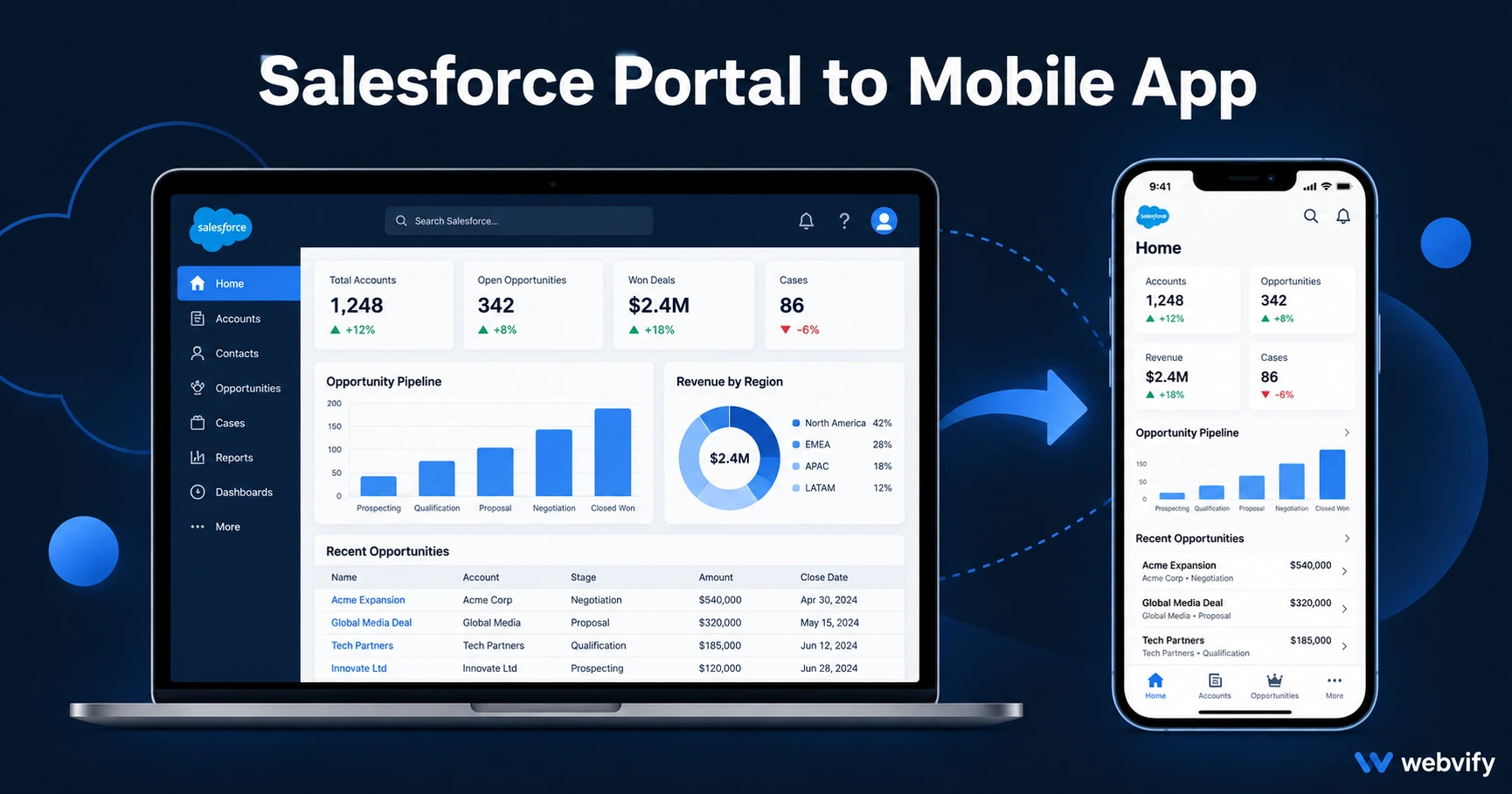
Convert your Salesforce Experience Cloud portal into a branded iOS and Android app — no rebuild required. Complete step-by-step guide for 2026.
Inside this article
Your Salesforce Experience Cloud portal is already built, live, and working. The problem is that your customers live on their phones — and a web portal doesn't live on a home screen.
Converting a Salesforce Experience Cloud portal into a branded mobile app doesn't mean rebuilding it from scratch. It means wrapping it in a native WebView container, packaging it for the App Store and Google Play, and submitting it under your company's own developer accounts. Here's exactly how that works.
Why Salesforce Experience Cloud Portals Need a Mobile App
Salesforce Experience Cloud (formerly Community Cloud) powers customer portals, partner portals, and employee hubs for thousands of companies. These portals are fully responsive — they work on mobile browsers. But "works on mobile" and "feels like a mobile app" are not the same thing.
A mobile app installed on your customer's device shows up on their home screen, delivers push notifications directly to their lock screen, and loads instantly without a browser tab. A bookmarked web portal doesn't do any of these things.
For companies using Experience Cloud as a customer portal, this gap matters. A customer who has your app on their phone is significantly more likely to engage between service touchpoints than one who has to remember to open a browser.
Does a WebView App Work With Salesforce Experience Cloud?
Yes — with one important consideration.
Salesforce Experience Cloud portals render through Lightning Web Runtime, which is standard web technology that loads in a WebView without modification. The authentication layer — whether it is Salesforce login, SSO, or a branded identity provider — also works in a WebView, since it is session-based and cookie-persisted.
The one thing to check before submission is whether your portal uses Salesforce's native mobile SDK features (like push notifications via the Salesforce Mobile SDK). If it does, those features will not carry over to a WebView-based app — you will use the WebView app's native push notification system instead, which gives you more direct control over audience segmentation and send timing.
For the vast majority of Experience Cloud portals — customer self-service, partner hubs, and internal employee portals — a WebView wrapper is a clean, complete solution.
How to Convert Your Salesforce Portal to a Mobile App
Step 1: Set up a custom domain for your portal.
Both Apple and Google require a custom domain — not a *.force.com or *.salesforce.com URL — for App Store and Google Play approval. Configure a branded subdomain in your Experience Cloud settings: for example, portal.yourcompany.com. This is required regardless of how you package the app.
Step 2: Test the portal on a mobile browser at that custom domain. Log in, navigate through all key sections, and confirm the full user flow works cleanly. Pay attention to login redirects, document downloads, and any embedded Lightning components. If it works correctly on a mobile browser, it will work correctly in a WebView app.
Step 3: Package the app. You have two options. You can build the WebView container yourself using Xcode and Android Studio — which requires knowledge of native app packaging and App Store compliance rules. Or you can use a managed service that handles the full process: building the WebView app, configuring push notifications, and submitting to both stores under your company's developer accounts.
Services like Webvify take your portal URL and convert it into a fully branded app — splash screen, app icon, push notification configuration, App Store submission — without you needing to open Xcode or Android Studio.
Step 4: Meet the App Store compliance requirements. Apple's App Store has two requirements relevant to WebView apps. First, Guideline 4.2 (Minimum Functionality): your app must provide meaningful functionality beyond a mobile browser. Push notifications, a structured navigation experience, or an offline content component typically satisfy this. Second, Guideline 3.1.1: if your portal sells digital goods or subscriptions via Stripe, those checkout flows must redirect to an external browser on iOS. Physical goods, services, and B2B subscriptions billed separately are not affected.
Step 5: Submit and go live. App Store review takes 24–48 hours for first-time submissions. After approval, any content or feature updates to the portal are immediately visible in the app — the app loads from your live portal URL, not a static build, so no App Store update is required for routine portal changes.
Salesforce-Specific Requirements Before Submission
Custom domain is non-negotiable. A *.force.com URL will not pass App Store review. This is the most common blocker for companies packaging Experience Cloud portals.
Session timeout configuration. Salesforce portals have configurable session timeout policies. A 15-minute timeout that's acceptable for a desktop browser feels punishing on a mobile app. Set the portal session timeout to at least 8 hours for a comfortable mobile experience.
Lightning component performance on Android. Lightning Web Components are optimized for web rendering, but heavy dashboards with many embedded components can feel slow on mid-range Android devices. Test on a mid-range device before submission — not just on a flagship phone.
Digital subscriptions via Stripe. If your Experience Cloud portal gates access behind a Stripe-billed subscription, the checkout flow must redirect to Safari or Chrome on iOS. This is an Apple requirement, not a Salesforce limitation, and the redirect pattern is well-established across SaaS and B2B portal apps.
If you want to learn more about how the App Store review process works for WebView apps, this App Store rejection prevention guide covers the most common failure points.
Managing Your Salesforce Experience Cloud App After Launch
Push notifications are the primary value driver after launch. You can segment notifications by user type (customers, partners, employees), trigger them based on portal activity (a new case update, a shared document, an approval request), or schedule them for announcements and campaigns.
Unlike apps built with the Salesforce Mobile SDK, a WebView-based app routes push notifications through a standard mobile push service — which means you have direct control over the full push notification experience without being locked into Salesforce's notification system or licensing tier.
Portal content updates appear in the app immediately. If you change navigation, add a new Lightning component, or update your branding in Experience Cloud, those changes are live in the app on next open — no App Store resubmission needed.
For tips on managing performance and user engagement after launch, see this mobile app performance metrics guide.
FAQ
Can I convert a Salesforce Experience Cloud portal to a mobile app without rebuilding it?
Yes. A WebView-based approach packages your existing portal URL into a native app container without touching any Lightning components or backend logic. The app loads your live portal on each open, so content and functionality are always in sync with the web version.
Does Salesforce Experience Cloud work inside a WebView app?
Salesforce Experience Cloud portals render through standard web technology and load cleanly in a WebView. SSO, cookie-based session persistence, and Lightning Web Components all work without modification. The only requirement is that your portal is served from a custom domain — not a Salesforce-hosted URL.
How long does it take to get a Salesforce portal app on the App Store?
App Store review takes 24–48 hours after submission. The time before submission depends on how you package the app. With a managed service, the build and submission process typically takes a few business days. Building the WebView container manually with Xcode and Android Studio takes longer, depending on your team's familiarity with native app packaging.
Your Salesforce Experience Cloud portal is already doing the heavy lifting. Getting it on the App Store and Google Play is a packaging step, not a rebuild. Webvify handles the full process — WebView configuration, push notification setup, and App Store submission — so your team stays focused on the portal, not mobile development.