

How to Turn Your Framer Site Into an iOS App (Without a Developer)
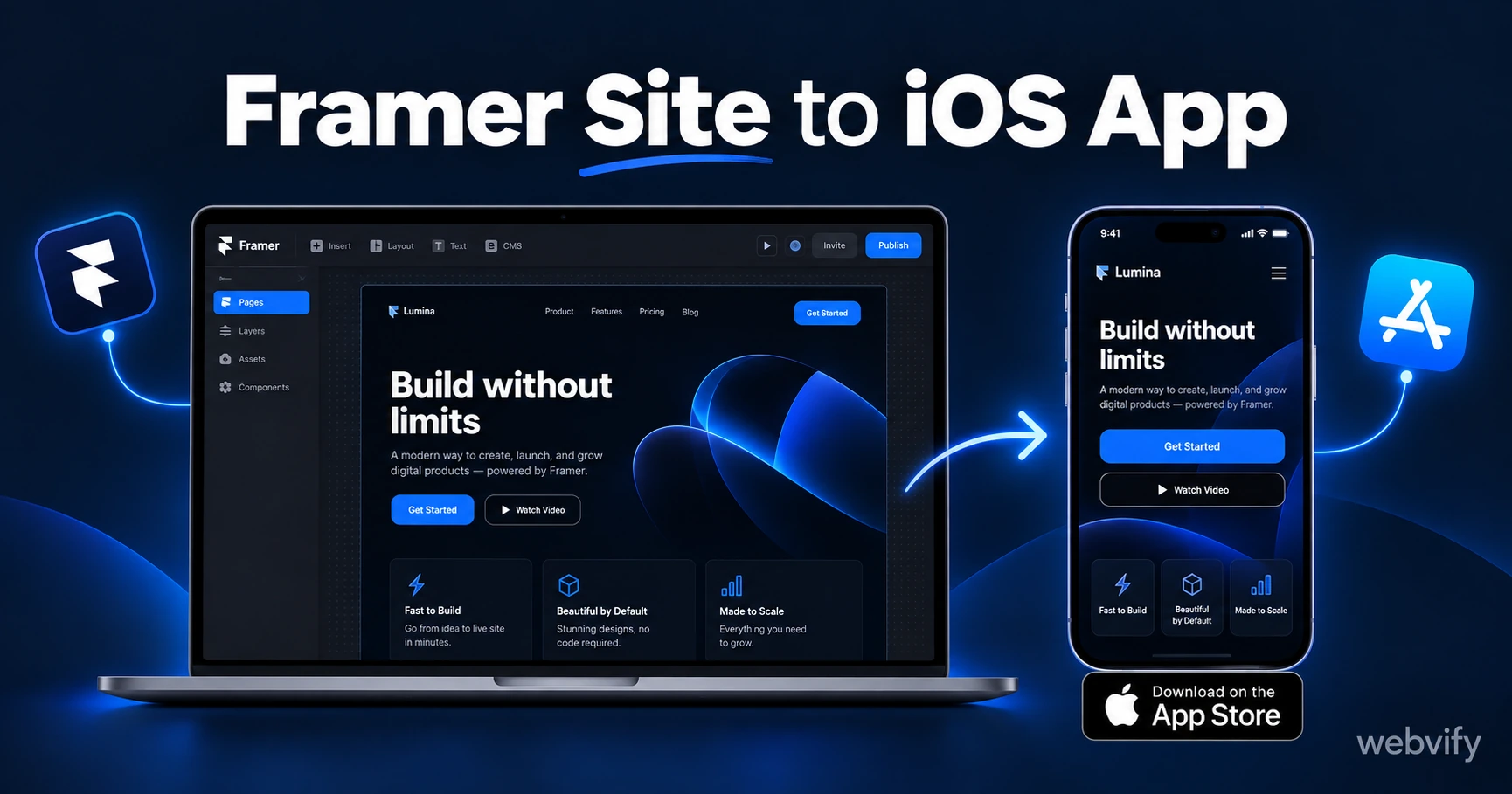
Turn your Framer site into an iOS App Store app without rebuilding it. Here's what to prepare, what to avoid, and how to get it live in days.
Inside this article
- How to Turn a Framer Site Into an iOS App
- Step 1 — Set Up a Custom Domain Before Submitting a Framer iOS App
- Step 2 — Understand Apple's Minimum Functionality Rule for Framer iOS Apps
- Step 3 — Check the IAP Rule If You Sell Digital Products
- Step 4 — Package and Submit Your Framer Site to the App Store
- What Works Inside a Framer iOS WebView App
- How Long Does It Take to Publish a Framer iOS App?
- FAQ
Framer has no App Store export button. That's the gap most designers hit when a client asks for an iOS app.
How to Turn a Framer Site Into an iOS App
Converting a Framer site into an iOS app doesn't require rewriting it in Swift or learning mobile development. It uses a technique called a WebView wrapper: your Framer URL is packaged inside a native iOS container, which Apple reviews and approves like any other app.
The result sits on the App Store just like a traditional app. Your Framer site handles the content, layout, and interactions — the wrapper handles the iOS shell, App Store listing, push notifications, and distribution.
Here's what the process looks like from start to finish.
Step 1 — Set Up a Custom Domain Before Submitting a Framer iOS App
Apple won't accept a mysite.framer.website URL. Before you can submit a Framer-based iOS app, you need your own domain pointing to your Framer site.
This is a quick Framer Pro setting: go to Site Settings → Publishing → Custom Domain. Connect a domain you own (e.g., yourbrand.com) rather than using the default Framer subdomain. Most registrars allow you to add a CNAME pointing to Framer's servers in a few minutes.
Once the custom domain is live and loading your site correctly, you're ready for the next step.
Step 2 — Understand Apple's Minimum Functionality Rule for Framer iOS Apps
This is the most common reason Framer iOS apps get rejected.
Apple's App Store Guideline 4.2 says apps must offer a minimum level of functionality beyond what a mobile browser already provides. A plain Framer portfolio or landing page — one that users could just bookmark in Safari — may fail this test.
The most reliable fix is adding push notifications to your app. Notifications transform a static site into a tool that delivers updates, offers, or alerts directly to the user's lock screen. Apple recognizes this as a genuine app capability that goes beyond a browser experience.
Other ways to meet the standard include exclusive in-app content, a login-gated area, or interactive features that go beyond passive reading. If your Framer site already has these — a booking tool, a logged-in community, dynamic CMS-driven content — you likely clear the bar without modifications.
Step 3 — Check the IAP Rule If You Sell Digital Products
If your Framer site sells digital products — courses, PDF templates, design assets, access to gated content — you need to know about Apple's Guideline 3.1.1 before submitting.
Apple requires that all digital goods sold inside an iOS app use Apple's in-app purchase system, which takes a 30% cut. Framer Commerce and third-party payment tools like Stripe or Lemon Squeezy are not compliant by default for digital sales inside iOS apps.
The fix: route purchase flows to an external browser. When a user taps "Buy" inside the app, open that URL in Safari instead of completing the transaction inside the WebView. This pattern is used by Udemy, Coursera, and thousands of other course platforms to stay compliant.
If your Framer site only sells physical goods (prints, merchandise, custom orders), this rule doesn't apply — Apple's IAP requirement covers digital content only.
Step 4 — Package and Submit Your Framer Site to the App Store
Once your Framer site is ready (custom domain live, notifications planned, IAP flows handled), the packaging step converts it into an IPA binary that Apple accepts.
A WebView wrapper service handles this for you. You provide the URL of your Framer site, set your app name and bundle ID, upload your icons and App Store screenshots, and the service produces the iOS binary. The binary is then submitted to App Store Connect through your Apple Developer account ($99/year).
The App Store review typically takes 24–48 hours for a first submission. Rejections are usually tied to Guideline 4.2 (minimum functionality) or 3.1.1 (IAP), both of which are fixable with the steps above.
Services like Webvify handle the full build-and-submit process end-to-end — you don't need to touch Xcode, manage certificates, or understand provisioning profiles. The app is submitted under your own Apple Developer account so you own it completely.
What Works Inside a Framer iOS WebView App
Framer's rendering engine is web-based, which means nearly everything works inside a WebView exactly as it does in a browser:
- CMS-connected pages update automatically — no redeployment needed when you edit content
- Framer's scroll animations and interactions render correctly on iOS WebKit
- Framer Auth (email, Google, or magic link login) works in WebView
- Video embeds (Vimeo, YouTube) load correctly
- Framer's built-in form submissions work as expected
Two things to verify manually before submitting:
Third-party fonts — some custom web fonts load via cross-origin requests. Test in a WebView environment or on a physical device before submitting.
Social logins — OAuth flows that open a popup window may need adjustment. Use redirect-based OAuth flows instead of popups for WebView compatibility.
How Long Does It Take to Publish a Framer iOS App?
From a ready Framer site (custom domain live, notifications scoped) to a live iOS app, the typical timeline is:
- App packaging and setup: 1–2 days
- App Store review: 1–2 days
- Total: 3–5 business days for a standard submission
If this is your first time navigating App Store Connect, provisioning profiles, and developer certificates, the setup adds a few hours. Using a managed service that handles submission on your behalf removes that friction entirely.
For a detailed checklist of what to prepare before submitting any web-based app to the App Store, this guide covers all the common rejection triggers: How to Avoid App Store Rejection for WebView Apps →.
If you're also targeting Android users, the process is separate but parallel — see the full cross-platform guide: How to Turn Your Framer Site Into a Mobile App →.
FAQ
Can I publish a Framer site to the App Store without a developer?
Yes. A WebView wrapper converts your Framer URL into a native iOS binary that Apple accepts. You don't need to write Swift or manage Xcode. You do need an Apple Developer account ($99/year) and a custom domain pointing to your Framer site. A managed service like Webvify handles the packaging and submission so you're not navigating Apple's developer portal alone.
Does Framer's CMS work inside an iOS app?
Yes. Framer CMS updates are reflected in the app automatically — there's no need to republish the app when you edit content. Because the app loads your live Framer URL, any change you make in Framer's editor appears in the iOS app on the next page load, exactly as it does in a browser.
What's the difference between a Framer iOS app and a Framer Android app?
The packaging process is separate for iOS (Apple App Store) and Android (Google Play). The underlying Framer site is the same, but the container binaries differ. iOS uses an IPA file submitted through App Store Connect; Android uses an AAB file submitted to the Google Play Console. Apple has stricter review guidelines than Google, particularly Guideline 4.2 and Guideline 3.1.1. If you're submitting to both platforms, handling iOS first is common given Apple's longer review cycle.
Ready to publish your Framer site as an iOS app? Webvify builds and submits WebView apps end-to-end — you get a live App Store listing without touching Xcode. Get started at webvify.app