

How to Turn Your Framer Site Into an Android App (Without a Developer)
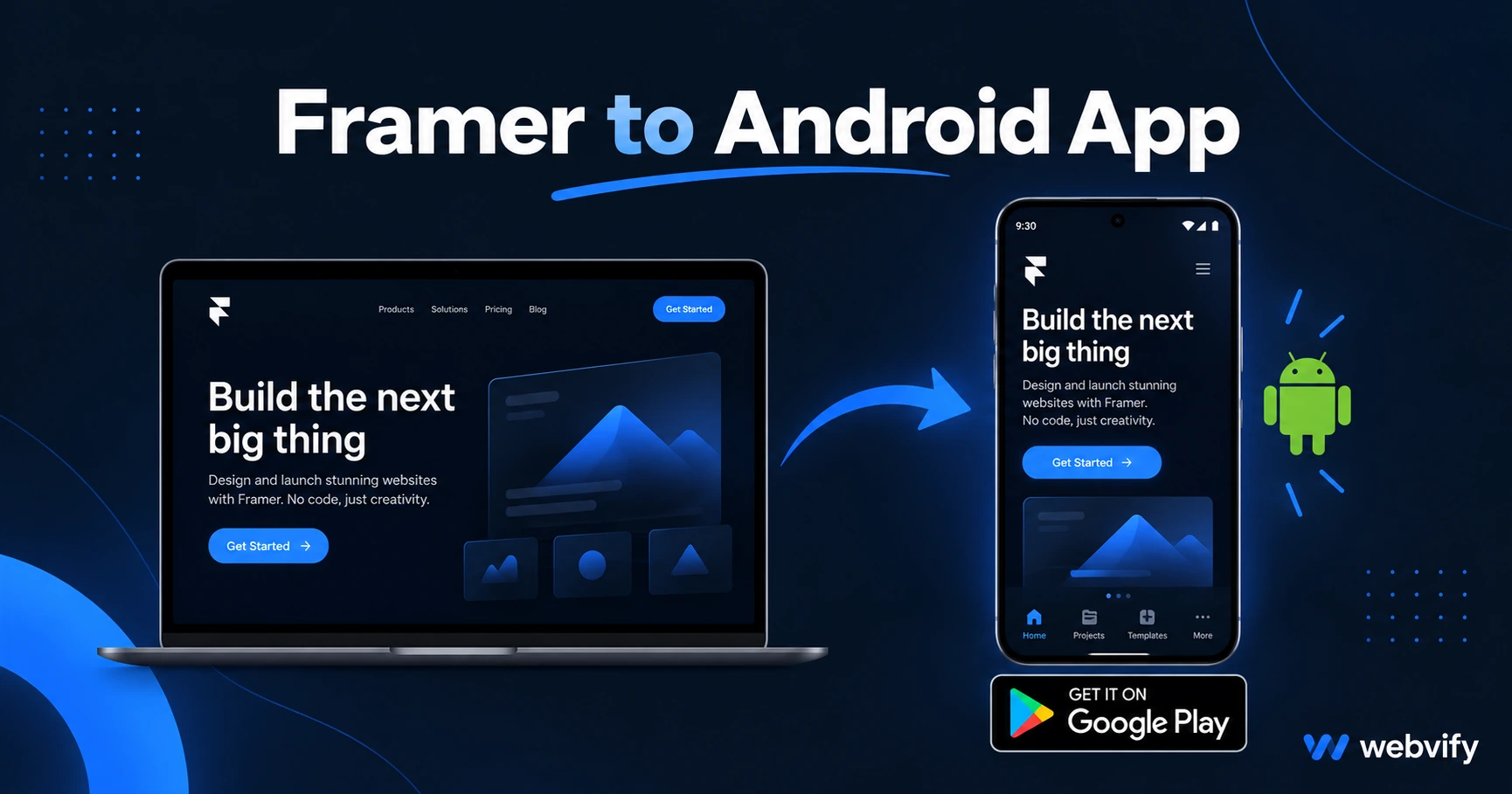
Framer has no Google Play export. Here's how to turn your Framer site into an Android app using a WebView wrapper — and get it listed without a developer.
Inside this article
- What You Need Before Starting a Framer Android App
- How the WebView Wrapper Works for Framer Android Apps
- Step 1 — Check Your Framer Site's Mobile Experience
- Step 2 — Handle Google Play Billing Rules for Framer Android Apps
- Step 3 — Build the Android App Package
- Step 4 — Complete the Google Play Submission Requirements
- Step 5 — Submit and Wait for Review
- FAQ
Framer has no Google Play export button. If a client asks you for an Android app, there's no built-in path from Framer to a Play Store listing.
The solution is a WebView wrapper: your Framer URL is packaged inside a native Android container, built as an AAB file, submitted to Google Play, and published under your own developer account. Your Framer site handles the content and interactions. The wrapper handles the Android shell, push notifications, and distribution.
Here's how to do it.
What You Need Before Starting a Framer Android App
Two requirements must be met before you submit anything to Google Play.
A custom domain. Google Play's review process is less strict than Apple's about domains, but your Framer site still needs a professional URL. A mysite.framer.website subdomain is acceptable for basic review, but a custom domain gives your app an App Store-quality listing and avoids future issues. Point your domain to Framer in your domain settings before packaging.
A Google Play Developer Account. This is a one-time $25 payment at play.google.com/console. Setup takes under 10 minutes. You'll need to verify your identity with a government ID — Google has been tightening this process through 2026. Once your account is live, you own the listing permanently.
If you're a designer or agency building this for a client, the developer account should be in the client's name. They own the app listing, not you.
How the WebView Wrapper Works for Framer Android Apps
A WebView wrapper is a minimal Android app that loads your Framer URL inside a native container. From a user's perspective, it looks and behaves like a regular Android app — it has an icon, it launches from the home screen, it receives push notifications.
From a technical perspective, the wrapper is a thin native shell. Your Framer site handles all the UI: typography, animations, interactions, CMS content, form submissions. The wrapper adds what a website alone can't: home screen presence, push notifications, Google Play discoverability, and a native install experience.
This is the same approach used by thousands of small business apps on Google Play. It works for any Framer site that's mobile-responsive — and Framer's default layouts are already optimised for mobile.
Step 1 — Check Your Framer Site's Mobile Experience
Before packaging, open your Framer site on a real Android phone. Check three things:
Navigation: Can you tap all buttons comfortably? Tap targets should be at least 44px tall. If any buttons are too small on mobile, fix them in Framer before proceeding.
Login or gated content: If your Framer site has authentication (Framer CMS member areas or a third-party login), test it in a mobile browser first. Session cookies behave the same in a WebView as in Chrome Mobile, so if the login works in Chrome it will work in the app.
Forms and payments: Framer's native form submissions work inside a WebView with no issues. If you've embedded a Stripe Checkout or other payment widget, test it on Android mobile — most work without modification.
Step 2 — Handle Google Play Billing Rules for Framer Android Apps
This is the most important compliance point for Framer sites that sell digital products.
If your Framer site sells digital goods — downloads, subscriptions, online courses — through a payment processor like Stripe, Google Play requires you to use Google Play Billing instead. This is similar to Apple's rule (Guideline 3.1.1), and it carries the same penalty: your app gets rejected.
The clean fix is identical to the iOS approach: redirect all digital purchase flows to an external browser. When a user taps "Buy" for a digital product, open the payment URL in Chrome rather than completing it inside the WebView. Physical goods and services (bookings, consultations, shipping-based orders) are completely exempt — no billing API required.
If your Framer site is purely informational, a booking tool, or sells physical products, you can skip this step entirely.
Step 3 — Build the Android App Package
A Framer-to-Android-app conversion requires generating a signed AAB (Android App Bundle) file. Google Play no longer accepts APKs — AAB is the required format as of 2021.
The build process takes your Framer URL and produces a signed binary:
- Your Framer domain becomes the app's content source
- The wrapper adds a native Android manifest (package name, version, permissions)
- Push notification support is configured via Firebase Cloud Messaging
- The AAB is signed with a keystore unique to your app
This step requires a Mac or Linux build environment and Android SDK tooling. If you're not a developer, this is where a managed service adds the most value — services like Webvify handle the build, keystore management, and submission for you, so you never touch Android Studio.
For the iOS version of this process, see the companion iOS guide. The wrapper approach is the same — only the build tooling and store requirements differ.
Step 4 — Complete the Google Play Submission Requirements
Google Play has several compliance sections that are easy to miss on first submission.
Data Safety form. Every app must declare what data it collects and whether it shares it with third parties. If your Framer site uses analytics (Google Analytics, Mixpanel), you'll need to disclose that. If it collects email addresses or form submissions, declare that too. Incomplete forms are a common rejection reason.
Content rating. Google Play requires a content rating questionnaire. Answer honestly — most small business apps land at PEGI 3 / Everyone, which is the lowest and fastest-approved rating.
Target API level. Google Play requires apps to target Android API level 35 or higher in 2026. This affects how permissions and background processes behave. A well-built WebView wrapper should set this correctly by default — if you're using a builder tool, check that it meets the current Android API target level requirements.
Closed testing (12-testers rule). Since 2023, new Google Play developer accounts must complete a closed testing period with at least 12 testers for a minimum of 14 days before moving to production. If your developer account is new, plan for this in your timeline. Our guide to Google Play's 12-testers requirement walks through the fastest way to complete it.
Step 5 — Submit and Wait for Review
Google Play's review process is significantly faster than Apple's. Most new apps get an initial decision within 24–48 hours. Complex apps or accounts flagged for policy review can take 3–7 days.
Common rejection reasons for Framer-based Android apps:
- Missing privacy policy URL in the Play Store listing
- Framer site is not mobile-responsive (rare, since Framer handles this well)
- Digital goods sold via Stripe without a browser redirect
- Data Safety form left incomplete or inaccurate
Once approved, your app goes live on Google Play. Updates work the same way — push changes to your Framer site and they appear instantly in the app, since the WebView loads from your live URL. No new submission needed for content changes.
FAQ
Does Framer work well as an Android app?
Yes. Framer's output is clean HTML/CSS/JS optimised for modern browsers, which is exactly what a WebView renders. Framer animations and interactions work natively inside an Android WebView. The main limitation is billing: digital payments via Stripe must be redirected to Chrome if Google Play Billing compliance applies.
Can I publish a Framer site to Google Play without a developer?
The App Store submission side requires no coding knowledge — you need a Google Play Developer account ($25 one-time) and a signed AAB file. Generating the AAB file requires Android build tooling, so most non-developers use a managed conversion service to handle that step. The Google Play console itself is straightforward once you have the binary.
How long does it take to get a Framer app on Google Play?
From starting the build to going live: approximately 3–5 days, assuming no compliance issues. Build and packaging: 1 day. Google Play review: 1–3 days. New accounts with closed testing requirements add 14 days to this timeline. Custom domain setup (if not done yet) takes under 1 hour.
You built the Framer site. Getting it onto Google Play is the last step. Webvify converts your Framer site into a fully signed Android app and manages the entire Google Play submission process — so you go from URL to Play Store listing without touching Android Studio.