

How to Turn Your WebStudio Site Into a Mobile App (Without a Developer)
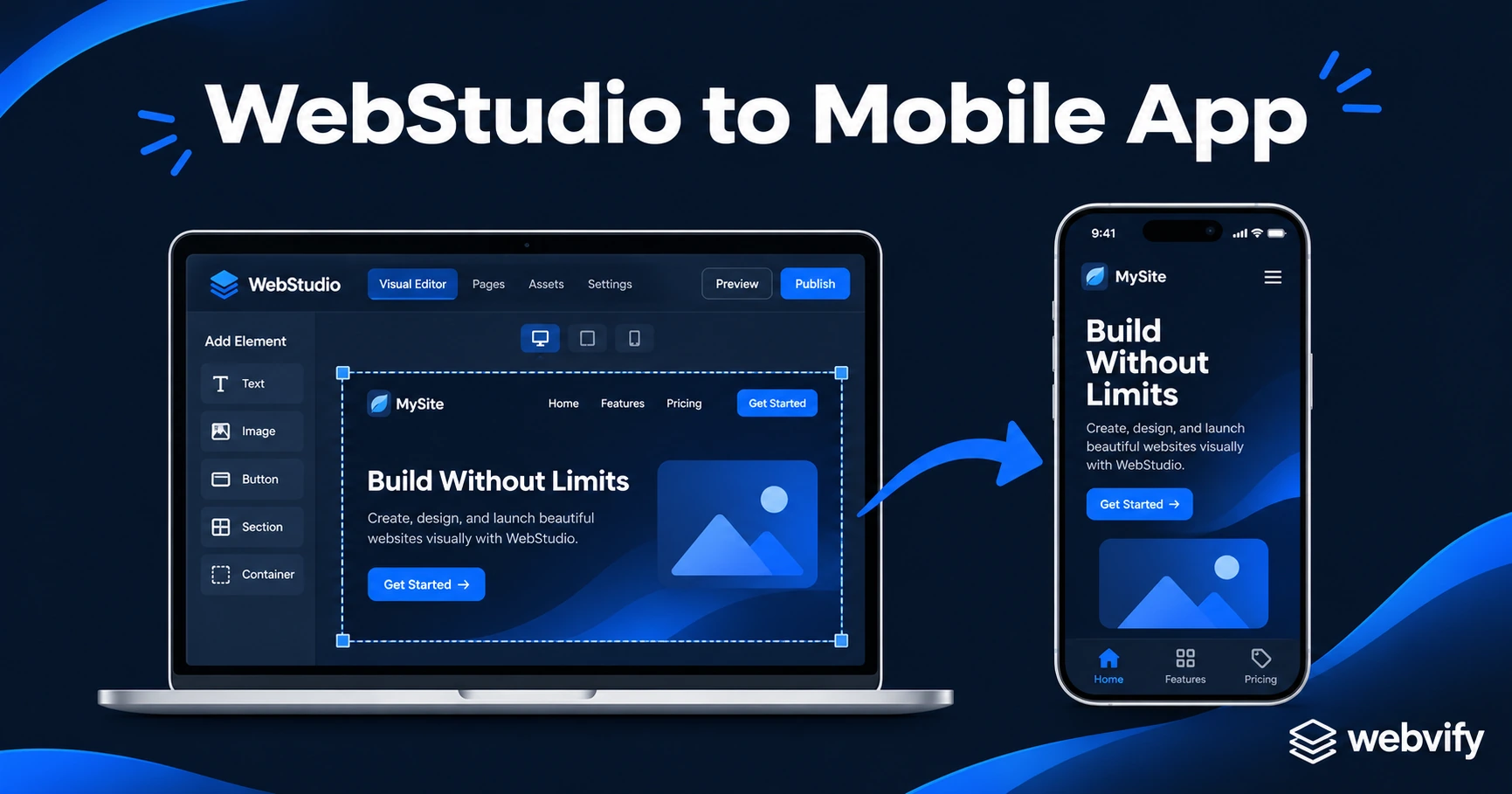
WebStudio has no App Store export. Here's how to turn your WebStudio site into a published iOS and Android app — without writing a line of code.
Inside this article
WebStudio builds some of the cleanest websites on the web — but there's no "Publish to App Store" button in the editor. That gap is costing you mobile downloads every week.
More than 60% of web traffic now comes from mobile devices, and users who download a branded app convert at two to three times the rate of mobile website visitors. Your WebStudio site looks great on a phone, but it isn't on anyone's home screen.
The good news: you don't need to rebuild anything. A WebView wrapper turns your existing WebStudio site into a fully branded iOS and Android app without touching the original project.
Why WebStudio Has No App Store Export
WebStudio (webstudio.is) is an open-source visual web builder that generates clean, semantic HTML and CSS — closer to hand-coded output than most no-code tools. It's built for the web platform, which is exactly why it doesn't include a mobile app export.
The App Store and Google Play don't accept websites. They require native application binaries: an IPA file for Apple and an AAB file for Android. These are compiled packages with specific metadata, entitlements, and compliance declarations that can only be produced by a native build pipeline.
WebStudio can't produce these files because it isn't a mobile development environment. That's not a limitation — it's a focus. But it means you need a separate step to go from published WebStudio site to App Store listing.
What a WebView App Is — and Why It Works for WebStudio Sites
A WebView app is a native shell — a thin iOS or Android container — that loads your existing website inside it. From the outside, it looks and behaves like a native app: its own App Store listing, its own icon, its own splash screen, and push notification capability.
From your side, nothing changes about your WebStudio workflow. You update your site, and the app reflects the changes automatically. There's no separate app content to manage.
This is how many professional apps are built — including products from companies far larger than small businesses. The App Store approves thousands of WebView apps every week, provided they meet Apple's guidelines.
For WebStudio sites specifically, the approach works well because WebStudio produces responsive, clean HTML that renders correctly in a WebView without layout issues or blank white screens.
What to Check Before You Submit Your WebStudio App
Not every WebStudio site is ready for the App Store without a small configuration step. Three things to verify before you start:
Custom domain. Apple and Google require apps to load from a stable, branded domain. If your site is still on a *.webstudio.app subdomain, map it to your own domain first. WebStudio supports custom domains on paid plans.
Minimum Functionality (Apple Guideline 4.2). Apple rejects apps that feel like a plain website with no added value. Push notifications — which a WebView app can include — satisfy this requirement on their own. If your site has a booking system, a shop, or a members area, that content counts too.
Digital goods and Apple's IAP rule. If you sell digital products (courses, subscriptions, downloadable files) directly through your WebStudio site, Apple's Guideline 3.1.1 requires those purchases to go through Apple's in-app purchase system on iOS — or be redirected to an external browser. Physical products and services are not affected.
Services like Webvify handle these compliance details as part of the submission process, so you don't need to study Apple's developer documentation yourself.
How to Turn Your WebStudio Site Into a Mobile App: Step by Step
Here's the practical path from WebStudio site to published app:
1. Confirm your custom domain is live. Log into WebStudio, go to your project settings, and verify your custom domain is connected and resolving correctly.
2. Prepare your app assets. You'll need an app icon (1024×1024 px) and a splash screen image. These are the branded visuals that appear on the App Store listing and while the app loads.
3. Create your developer accounts. Apple Developer Program costs $99 per year. Google Play Developer account is a one-time $25. Both need to be set up before submission begins.
4. Build the WebView wrapper. This is the native shell that loads your WebStudio URL. If you're using a managed service, this is handled for you. If you're going DIY, you'll need Xcode for iOS and Android Studio for Android — both have a significant learning curve.
5. Configure push notifications. Push notifications are what separate a mobile app from a mobile website. They let you reach customers directly on their lock screen — at open rates of 60–90%, compared to 20–30% for email. Set them up and test before submitting.
6. Submit and wait for review. Apple's review typically takes 24–48 hours. Google Play is usually faster. First-time submissions can take longer if reviewers have questions.
For the Android side of this process, this guide covers converting a website to an Android app in detail →
What Happens After Your App Is Approved
Once your app is live, your WebStudio site remains your single source of content. Every update you publish in WebStudio appears in the app automatically.
What you gain from the App Store presence:
- Home screen placement. Your brand is one tap away, not buried in a browser tab.
- Push notifications. The highest-reach channel available — 60–90% open rate vs 20–30% for email.
- App Store discoverability. Users searching for your category can find you in App Store search results.
- Trust signal. An App Store listing adds credibility that a website alone doesn't carry.
The maintenance overhead is minimal. WebView apps require an annual binary update to keep up with Apple's API level requirements — typically a one-click process through a managed service.
If you want a deeper look at what the full submission process involves, this App Store submission guide covers the complete checklist →
Frequently Asked Questions
Can I turn my WebStudio site into a mobile app without a developer?
Yes. A WebView wrapper converts your existing WebStudio site into a native iOS and Android app without any code changes to your site. A managed service like Webvify handles the native build, compliance configuration, and App Store submission end-to-end — you provide the domain and app assets, and they deliver a live listing.
Will my WebStudio site updates appear in the app automatically?
Yes. Because the app loads your WebStudio site URL, any content you publish in WebStudio is reflected in the app immediately — no separate sync step needed. The only time a new binary needs to be submitted is for changes to the app shell itself, such as a new icon, a push notification configuration update, or Apple's annual API level requirement.
Does Apple reject WebView apps?
WebView apps are approved on the App Store every day, but they need to meet specific guidelines. The two most common rejection triggers are: loading a website with no added functionality (Guideline 4.2 — solved by enabling push notifications) and selling digital goods without using Apple's in-app purchase system (Guideline 3.1.1). Both are preventable with the right configuration before submission. For a full breakdown of what to avoid, see this App Store rejection prevention guide →.
Your WebStudio site is already doing the hard work — it's built, it's live, and it renders correctly on mobile. Getting it onto the App Store and Google Play is the next step.