

How to Turn Your Webflow Site Into an iOS App (Without a Developer)
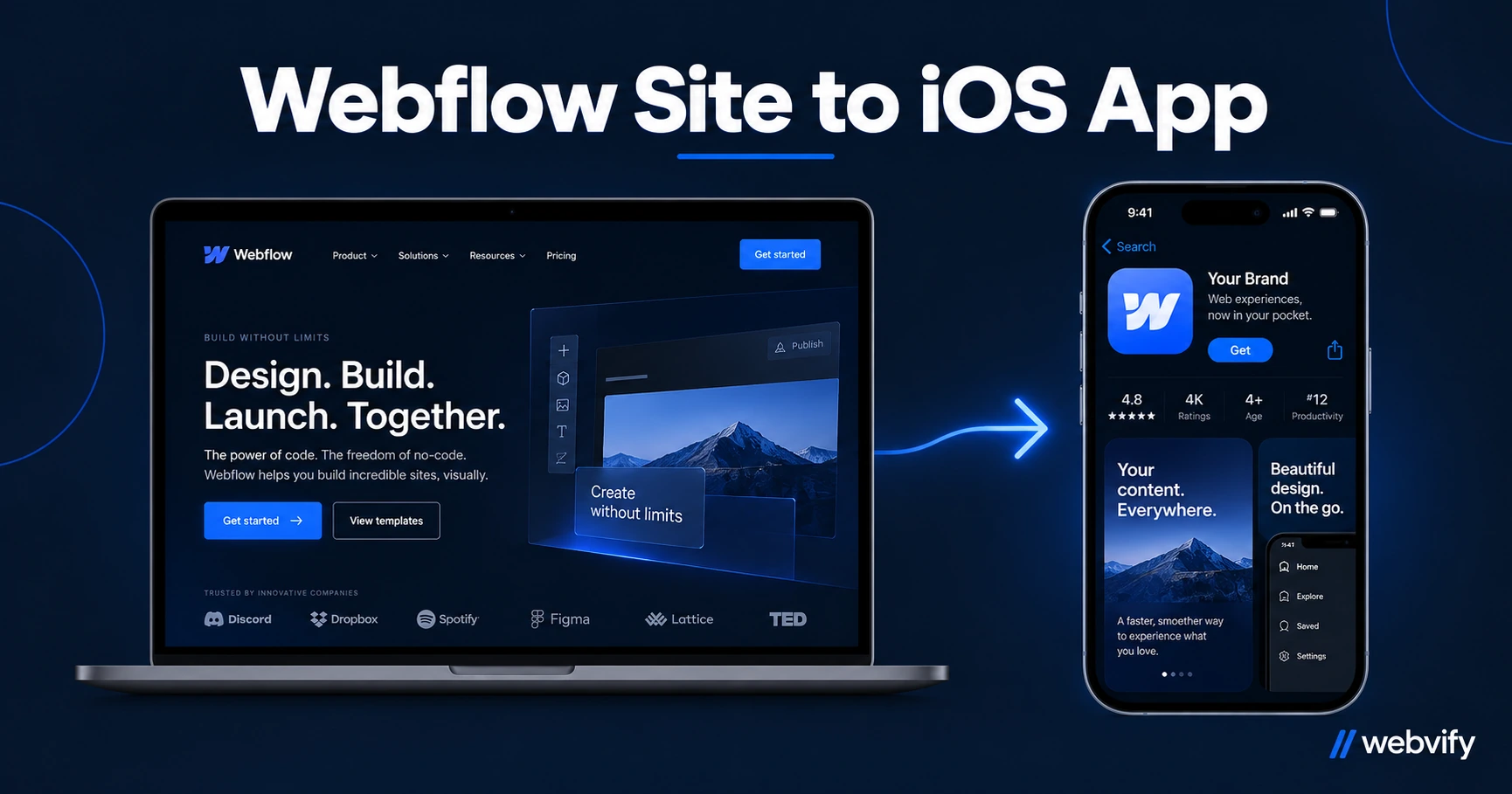
Your Webflow site can be on the App Store without rewriting it. Here's how to package it as an iOS app, what Apple checks, and the compliance traps to avoid.
Inside this article
Webflow builds some of the cleanest websites on the internet. Apple's App Store review team has never seen your Webflow site — and it won't, unless you package it as a native binary first.
Why Webflow Can't Export to the App Store
Webflow publishes to the web. The App Store only accepts native app binaries — .ipa files for iOS. These are two different formats, and Webflow has no built-in tool to bridge them.
The good news: your Webflow site is already doing the hard work. It's mobile-responsive, fast-loading, and — in Apple's eyes — a fully functioning web application. All you need is a wrapper that packages it into an iOS app format and handles the App Store submission process.
That wrapper is called a WebView app. It loads your Webflow URL inside a native iOS shell, giving users the App Store download experience while your site runs underneath. Webflow content updates propagate automatically — no resubmission to Apple required every time you change copy, publish a page, or update pricing.
What Apple Actually Reviews for a Webflow iOS App
Apple's review process isn't a mystery, but it trips up first-time submitters. For WebView apps built on Webflow, three guidelines matter most:
Guideline 2.1 — Custom Domain Required Your app cannot load a webflow.io subdomain. If your site is on staging.webflow.io or mysite.webflow.io, Apple will reject it. You need a custom domain (yourbrand.com) connected in Webflow before submitting.
Guideline 4.2 — Minimum Functionality Apple doesn't approve apps that are a thin wrapper around a website with no added value. Your Webflow site needs to demonstrate functionality beyond "viewing a webpage." Push notifications, a booking system, a product catalog, or a membership area all pass the bar. A single-page brochure site without any of these may not.
Guideline 3.1.1 — In-App Purchases for Digital Goods This is the most expensive gotcha for Webflow sellers. If your site sells digital products — templates, online courses, software licenses, or subscriptions — those purchases must use Apple's in-app purchase system, and Apple takes 30% of each transaction.
Physical goods and services are not subject to this rule. A Webflow e-commerce store selling physical products is clear. The standard fix for digital sellers is redirecting checkout to an external browser. Services like Webvify configure this during the packaging process so you don't need to figure out the redirect logic yourself.
How to Turn Your Webflow Site Into an iOS App
Here's the process from site to App Store:
1. Confirm your setup Make sure your Webflow site is on a custom domain, loads correctly on mobile screens, and has real functionality beyond static pages. Run it on a physical iPhone and confirm that navigation, forms, and any login flows work as expected.
2. Package the app A WebView app generator takes your custom domain URL and builds a native iOS binary. Push notification permissions, app icons, splash screens, and navigation settings are all configured at this stage.
If you're using Webflow Memberships, verify that cookies persist correctly after login. Most WebView wrappers maintain session state automatically, but it's worth testing before submission.
3. Set up your Apple Developer account You'll need an Apple Developer account ($99/year) to submit. Account enrollment takes 1–2 business days. You'll create an App Store listing — app name, description, screenshots, and keywords — inside App Store Connect.
4. Submit for review Upload the binary to App Store Connect and submit. Apple's review typically takes 24–48 hours for first-time submissions. If rejected, the review notes specify which guideline was triggered. The most common first-time rejections for Webflow apps are the custom domain issue (Guideline 2.1) or a metadata problem in the listing — both are fixable within hours.
Before submitting, read through the guide on how to avoid App Store rejections for WebView apps to catch the common pitfalls before Apple does.
Webflow-Specific Things to Check Before You Submit
A few Webflow-specific details worth reviewing:
Webflow Memberships: Member login and gated content work in WebView. Cookie-based sessions persist correctly in most implementations. Test the full login → gated page → logout flow on a real device before submitting.
E-commerce digital products: Template shops, downloadable files, and subscription billing must redirect to an external browser for iOS checkout. Physical product checkouts are exempt from this rule.
Webflow Interactions and animations: Complex GSAP-based animations and scroll triggers perform differently in a mobile WebView than in Safari desktop. Test on a real phone — Chrome DevTools mobile emulation is not a reliable substitute.
Third-party embeds: Calendly, Typeform, HubSpot forms, and video embeds (Vimeo, YouTube) render correctly in WebView. Anything using popup-based OAuth flows may need adjustment before the app passes review.
After Your Webflow iOS App Goes Live
Getting approved is the start, not the finish. Two things change immediately once your app is live on the App Store.
First, your Webflow business now appears in App Store search results — a second discovery channel that your website alone can't provide. Users searching the App Store for services like yours can find you there.
Second, you can send push notifications. Unlike email (20–30% open rate) or social posts buried by algorithms, push notifications land directly on the lock screen at 60–90% open rates. For a Webflow site built around client relationships — a membership community, a consultancy, a coaching platform — push notifications are the highest-leverage retention tool available.
Your Webflow content updates continue to publish from Webflow as normal. Blog posts, portfolio additions, pricing changes, and new course materials go live in the app without any App Store resubmission.
If you've already published a general Webflow mobile app or want to understand the Android side of this, the main Webflow to mobile app guide covers the full cross-platform picture.
Frequently Asked Questions
Does Webflow have a native iOS app builder?
No. Webflow publishes websites to the web but does not export native iOS apps. To get your Webflow site on the App Store, you need to wrap it as a WebView app — a native iOS binary that loads your Webflow URL inside an App Store-approved shell. No rebuild of your content is required.
Can you submit a Webflow site to the App Store without coding?
Yes. Packaging and submission don't require writing code. What you need is an Apple Developer account ($99/year), a custom domain connected to your Webflow site, and a WebView app generator or managed service to create the binary. Services like Webvify handle the entire process end-to-end without you needing to open Xcode or App Store Connect yourself.
How long does it take to get a Webflow iOS app approved?
Apple's review typically takes 24–48 hours. Including time for Apple Developer account enrollment (1–2 business days), binary packaging, and App Store Connect setup, expect around 5–10 days total for a first submission. A rejection adds another 24–48 hours per resubmission — which is why testing against the three key guidelines before submission saves the most time.
Your Webflow site is already doing the hard work. Webvify handles the packaging, submission, and push notification setup so you can get it on the App Store without touching Xcode.