

How to Add Push Notifications to Your Shopify Store With a Mobile App
Shopify email open rates average 20–30%. Push notifications via a mobile app reach 90%+ of your customers. Here's how to set it up without a developer.
Inside this article
Your Shopify marketing emails average a 20–30% open rate — and that's on a good day. Push notifications sent through a mobile app reach customers directly on their lock screen, with no spam filter standing between you and the sale.
If you run a Shopify store, you've probably noticed your email list is growing but repeat purchase rates aren't keeping pace. The problem isn't your products. It's the channel.
Why Shopify's Default Notification Options Fall Short
Shopify gives you two built-in customer communication channels: email and SMS. Both have significant limitations for re-engagement.
Email is the obvious first choice, but promotional emails increasingly land in Gmail's "Promotions" tab or get filtered to spam. Customers who genuinely want to hear from you still miss messages. The average Shopify merchant's email open rate sits at 20–30%, which means 7 in 10 customers never see your flash sale or restock alert.
SMS has better open rates but comes with friction. Customers are protective of their phone numbers, compliance rules vary by country, and if you send one too many messages, they opt out immediately. You can't recover that contact.
Web browser push notifications are another option, but Apple's Safari on iOS blocks them by default, cutting out a large portion of your mobile audience. On Android, customers must actively allow them through browser settings — and most don't.
A Shopify push notifications mobile app solves all three problems at once. When a customer installs your app, they get a standard OS-level permission request. Once accepted, you have a direct channel to their home screen that doesn't go through an inbox.
What a Shopify Store Mobile App Push Notification Looks Like
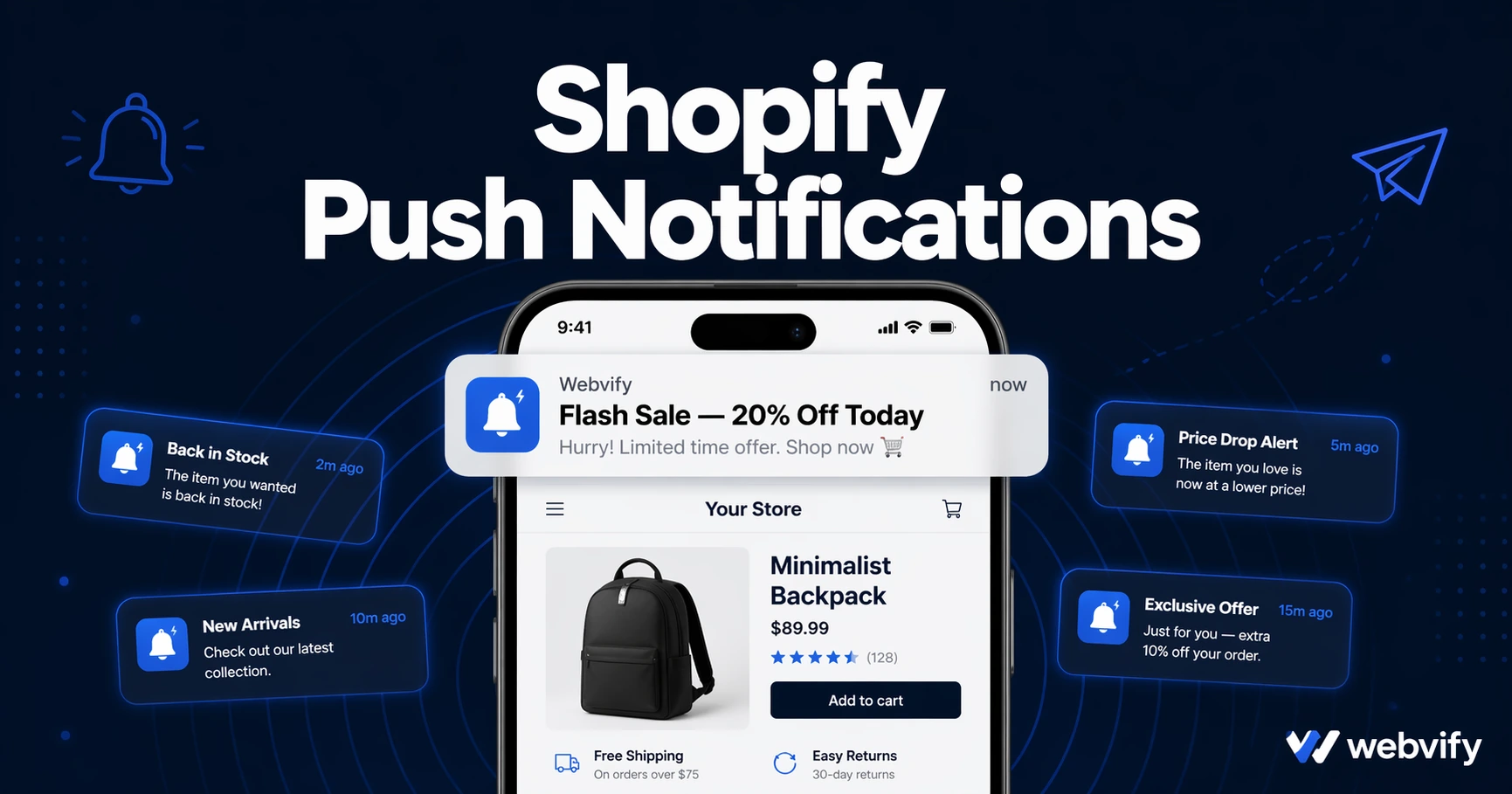
Push notifications from a Shopify store mobile app appear exactly like messages from any other app — they show up on the lock screen, in the notification center, and trigger a badge count on the app icon.
From the customer's perspective: they tap the notification and they're inside your store app, browsing or at checkout within seconds. No browser loading, no typing your URL, no navigating from an email to a browser to your store.
From your perspective: you send a notification from your admin panel, and it reaches every customer who has your app installed and has notifications enabled — typically 60–90% of your installed base, compared to 20–30% for email.
The types of notifications that drive the most revenue for Shopify stores are straightforward:
- Abandoned cart reminders — sent 1–3 hours after a customer leaves without purchasing
- Flash sales and time-limited offers — immediate delivery without relying on email timing
- Back-in-stock alerts — capture demand from customers who waited on a sold-out item
- Order and shipping updates — keep customers informed and reduce support tickets
- Loyalty and reward alerts — remind customers when they've earned points or a discount
Each of these works significantly better when the customer already has your app installed and has opted into notifications. Services like Webvify build the Shopify store mobile app and set up the push notification infrastructure end-to-end, so you're not configuring SDKs or dealing with Apple's developer portal yourself.
How to Set Up a Shopify Push Notifications Mobile App
Getting push notifications set up for your Shopify store requires three things: a mobile app that wraps your store, an Apple Developer account and Google Play account to publish it, and an admin panel to send notifications.
Step 1: Build the mobile app from your Shopify store URL. The most practical approach for Shopify store owners — especially those who don't want to rebuild their store inside a third-party app builder — is a WebView wrapper. This packages your existing Shopify storefront into a native iOS and Android app. Your products, checkout, and theme are already there. The wrapper adds native features: push notifications, app icon, splash screen, and App Store presence.
If you've already gone through the process of setting up your store on Shopify, rebuilding it from scratch inside another platform is a waste of time. The WebView approach means you maintain one storefront and the app reflects it in real time.
Step 2: Submit to the App Store and Google Play. Apple's review takes 24–48 hours on average for first-time submissions. Google Play is typically faster. The main thing to get right is your app metadata — title, description, screenshots — and ensuring your store has a proper privacy policy URL. If you're selling digital goods inside the app (like gift cards or digital downloads), you'll need to comply with Apple's In-App Purchase rules. For a standard Shopify physical goods store, approval is straightforward.
For a full walkthrough of the App Store submission process, see How to Submit Your App to the App Store Without a Developer.
Step 3: Start sending push notifications from your admin panel. Once your app is live, you'll send push notifications through a dashboard — not through Shopify's native admin. You write the message, select your audience (all users, or a segment), and send. Notifications go out instantly.
Segmenting Push Notifications for Better Shopify Customer Retention
Blasting every customer with every notification is a quick way to get them to disable notifications. The stores that get the most out of a Shopify push notifications mobile app treat it the way a good email marketer treats segmented lists.
Segment by purchase history: customers who bought Category A get notified about Category A restocks and sales, not everything in your catalog.
Segment by cart behavior: customers who abandoned checkout get a different message than customers who browsed but didn't add anything.
Segment by recency: customers who haven't purchased in 90 days get a re-engagement offer; recent buyers get loyalty rewards or new arrivals.
This kind of segmentation dramatically reduces opt-out rates and increases notification open rates. A Shopify store mobile app with a solid notification strategy typically sees 3–5x more repeat purchases from app users compared to the same customer segment reached only through email.
FAQ
Can I send push notifications to Shopify customers without a mobile app?
You can send web browser push notifications, but these don't work on Safari on iOS (Apple's default iOS browser), which rules out a significant portion of your mobile audience. A native mobile app is the only way to send push notifications reliably to both iPhone and Android users. The app also enables other engagement features that browser notifications don't — app icon badges, lock screen messages, and a persistent home screen presence.
How long does it take to get a Shopify store mobile app live?
With a WebView-based approach, the build process takes a few days. Apple's App Store review typically takes 24–48 hours for first-time submissions; Google Play is often faster. From starting the process to having your app available for download, most Shopify stores are live within one to two weeks.
Do Shopify push notifications replace email marketing?
No — they work best alongside email, not instead of it. Email is still effective for longer-form content, order confirmations, and customers who prefer inbox communication. Push notifications are faster, have higher open rates for time-sensitive messages, and are more effective for re-engagement. The highest-performing Shopify stores use both, segmenting by customer preference and message type.
Getting more value from the customers you already have is almost always more cost-effective than acquiring new ones. A Shopify push notifications mobile app gives you a direct, high-visibility channel that email can't match.
Webvify builds the Shopify store mobile app, handles App Store and Google Play submission, and sets up your push notification admin panel — so you can start sending within days, not months. No developer required.