

Android WebView Performance Guide: Make Your App Faster in 2026
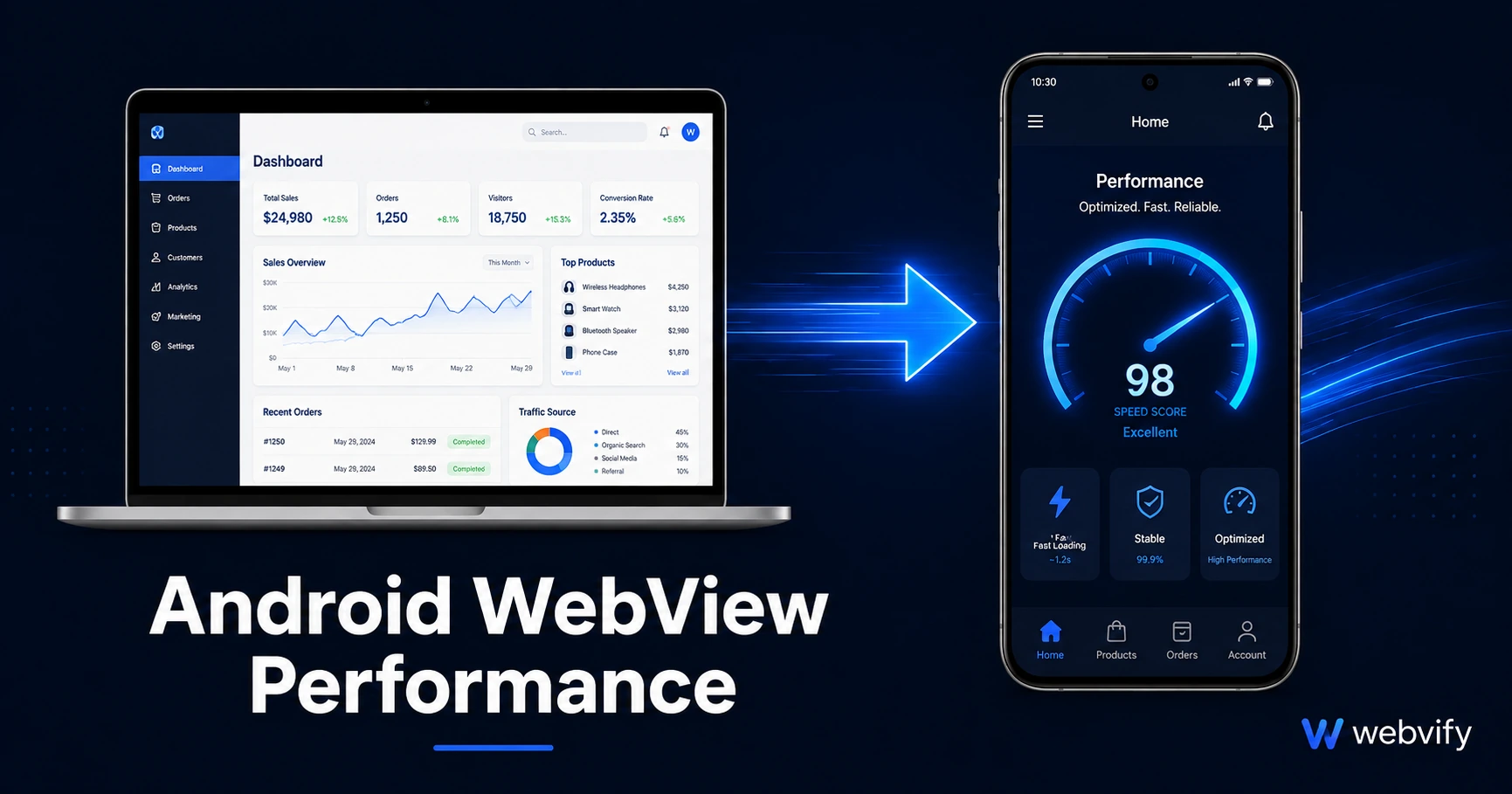
Slow WebView app losing users? This guide covers the top fixes for Android WebView performance — from site speed to caching to hardware settings.
Inside this article
53% of Android users abandon an app that takes more than 3 seconds to load. If your WebView app feels sluggish, that number is working against you every day.
The good news: most Android WebView performance issues are fixable — and most of them start on your website, not inside the app code.
This guide covers the most effective ways to improve WebView app speed, from foundation-level website optimizations to Android-specific settings that most WebView builders configure during setup.
Why Android WebView Apps Can Feel Slow
A WebView app is essentially your website running inside a native shell. When a user opens the app, the WebView loads your website over the network — just like a browser would.
That means Android WebView performance is directly tied to two things: how fast your website loads, and how the WebView itself is configured to handle that content.
Common causes of slow WebView apps on Android:
- Your website loads too much JavaScript on the first screen
- Images are not compressed or served in modern formats (WebP instead of JPEG/PNG)
- Hardware acceleration is not enabled on the WebView layer
- Caching is set to always re-fetch content instead of serving local copies
- The site is hosted on a shared server with slow response times
Most of these are not "app problems." They are website problems that show up more visibly inside a WebView because there's no browser chrome to distract the user during load.
Optimize Your Website Before You Wrap It
The single biggest lever for android webview performance is the speed of the underlying website. No amount of WebView configuration will compensate for a site that loads in 6 seconds.
Run your site through Google PageSpeed Insights (free at pagespeed.web.dev) before building the app. Look at Core Web Vitals — specifically Largest Contentful Paint (LCP) and Time to First Byte (TTFB).
The highest-impact fixes, in order:
Compress and convert images. Images are the most common cause of slow load times. Convert PNG and JPEG images to WebP format — same visual quality at 25–34% smaller file size. Use a plugin like Imagify (WordPress) or ShortPixel to automate this.
Defer non-critical JavaScript. Any script that isn't needed to render the first screen should load after the page is visible. Add defer or async attributes to third-party scripts like analytics, chat widgets, and ad trackers.
Enable server-side caching. If your hosting server has to rebuild the page on every request, load times climb. Enable full-page caching on WordPress (WP Super Cache or W3 Total Cache), or use a CDN with edge caching (Cloudflare's free tier covers this).
If your site scores above 80 on mobile in PageSpeed Insights before you build the app, your WebView will feel noticeably faster than apps built on slow sites.
Android WebView Performance Settings That Matter
Once your website is optimized, the WebView configuration layer becomes the next focus. These settings are set at build time — before the app is submitted to Google Play.
Hardware acceleration. This should always be enabled. It offloads rendering from the CPU to the GPU, which improves scroll smoothness and animation performance significantly. Without it, WebView apps feel slightly laggy even on fast connections.
DOM storage. Enabling DOM storage lets your website use localStorage inside the WebView, which modern web apps rely on for performance and session state. Without it, some web features fail silently or reload unnecessarily.
JavaScript. JavaScript must be enabled for almost any modern website. The performance consideration here is deferring heavy JavaScript (see website optimization above) rather than toggling it off.
Zoom controls. Disable built-in WebView zoom controls. Native pinch-to-zoom handled by the web layer (via the viewport meta tag) feels smoother than the default WebView zoom behavior on Android.
Services like Webvify configure these settings during the initial build — hardware acceleration, caching mode, DOM storage, and viewport handling are part of the setup process, not afterthoughts. You don't need to know what each setting does; you just need a builder who enables them correctly.
If you're wondering what Google Play requires from a WebView app perspective, this guide to Android API target level requirements in 2026 covers the compliance side alongside the performance side.
Cache Content to Reduce Load Times
Every time a user opens your WebView app, the default behavior is to fetch all content fresh from the server. For users on slow mobile connections, that means waiting.
The fix is cache mode configuration. Setting the WebView cache to serve cached content first — and only go to the network if content isn't available locally — cuts perceived load time significantly on repeat visits. For most SMB websites, where the homepage doesn't change every hour, this is one of the most impactful settings to get right.
Service workers offer more granular control. If your website is built on a modern framework (Next.js, Nuxt, or a Progressive Web App), service workers can pre-cache critical assets so the app shows content almost immediately on launch, regardless of connection speed.
Caching is most impactful for users who open the app daily. A loyalty customer who opens your coffee shop app every morning will experience near-instant load after the first visit if caching is set up correctly.
Test Your WebView App's Performance Before Launch
Performance testing before submission catches issues before they become reviews saying "this app is so slow."
Lighthouse (Chrome DevTools): Open your website in Chrome, open DevTools, go to the Lighthouse tab, and run a Mobile audit. The Performance score gives you a baseline. Anything below 60 should be addressed before wrapping into an app.
Real device testing: Emulators don't replicate real network conditions. Test the app on an Android device with a 4G connection (not Wi-Fi) to see what most of your users will experience.
WebPageTest: A free tool (webpagetest.org) that shows a waterfall view of every resource your page loads. It makes bottlenecks obvious — a third-party script blocking the first render shows up clearly here.
For businesses converting their website into an app, checking performance before submission prevents the most common post-launch complaint: "the app is slower than the website." In many cases, the app isn't slower — it just lacks the browser cache the user's phone had built up over months of browsing the site.
This guide on the benefits of converting your website to a mobile app covers the broader advantages of the WebView approach, including why it keeps app updates instant without App Store re-review.
Frequently Asked Questions
Why is my WebView app slower than my mobile website?
Your mobile browser has accumulated months of cached resources for your site. A freshly installed WebView app starts with an empty cache and fetches everything from scratch on the first open. After a few visits, load times typically improve as the WebView builds its own local cache. Configuring the app to use cached content where possible speeds up this process significantly.
Does hardware acceleration help Android WebView performance?
Yes, noticeably. Hardware acceleration offloads rendering work from the CPU to the GPU, which improves scroll smoothness, animation quality, and overall responsiveness. It should always be enabled in a production WebView app. Without it, the app may feel slightly "sticky" even on a fast connection.
How fast should a WebView app load on Android?
Target under 3 seconds for the first meaningful render on a 4G connection. If your site scores 70+ on Google PageSpeed Insights mobile, your WebView app will typically meet that target without additional optimization. If your site is slower, focus on image compression and JavaScript deferral before addressing WebView-specific settings.
Turn your existing website into a fast, fully branded Android app — without writing a line of code. Webvify handles everything from build to Google Play submission.